In this article
You set special opening hours in Lookster under Manage → Company Details → Opening hours & exceptions → Schedule Exceptions. There you close the salon on public holidays, give a single day shorter or longer hours, and create exceptions for the whole salon or for one employee. Online, clients can then only book at times when you are really open.
Where do you find special opening hours in Lookster?
Schedule exceptions sit right under your opening hours. You set up your regular week once, and every day that differs gets an exception: a public holiday closed, shorter hours on New Year's Eve, an extra late evening, or an employee who starts later one day.
This works in the Lookster Dashboard app for iPhone, iPad, Android and Windows, and also in the dashboard in your web browser. The screenshots below come from the iPad app of the demo salon Studio Rosé. You can find every app on the Lookster apps page.
How to set holiday and special hours, step by step
Step 1: Open your opening hours
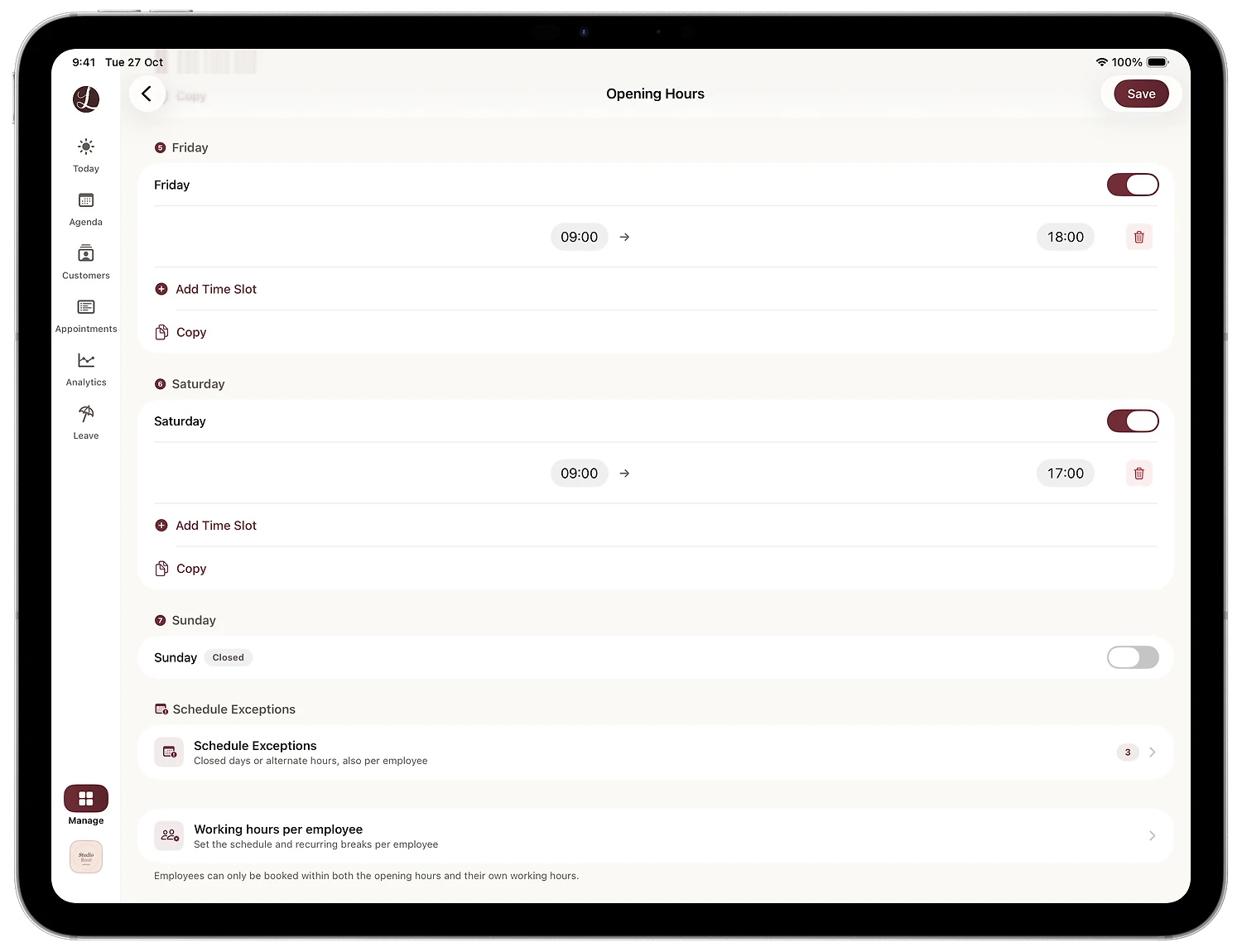
Tap Manage at the bottom of the left sidebar and choose Company Details → Opening hours & exceptions. You see your regular week, with a switch and time slots for each day. That is your normal schedule, and you don't need to change it for a holiday.
Scroll down to the Schedule Exceptions card, with the line "Closed days or alternate hours, also per employee". The number on the right shows how many exceptions you have already planned.
Step 2: Go to the right month
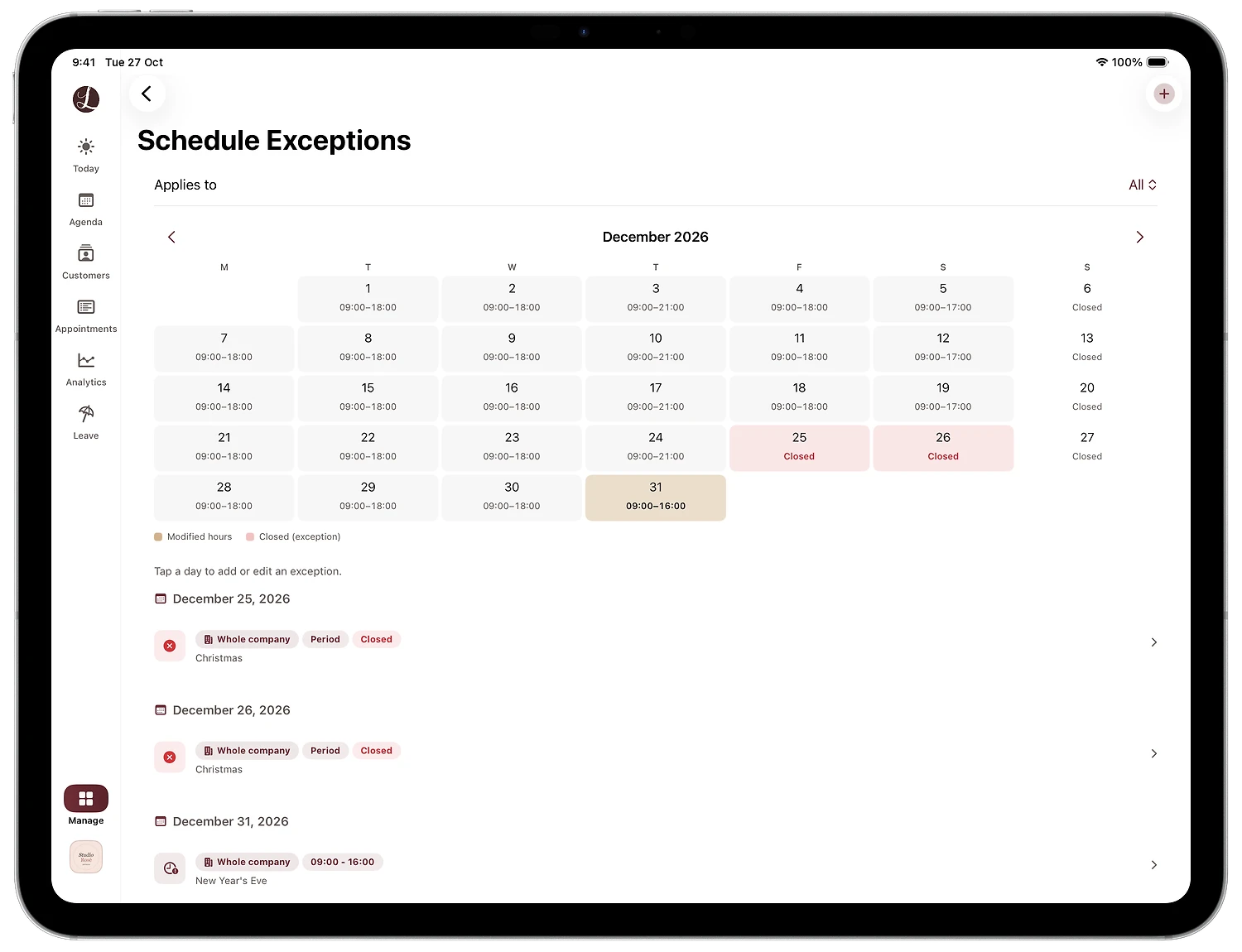
Tap Schedule Exceptions. A month calendar shows your normal hours on each day, for example 09:00 to 18:00, Thursday 09:00 to 21:00 for the late evening and Sunday closed. Use the arrows (Next month) to go to the month you want to change, in this case December.
Step 3: Add an exception
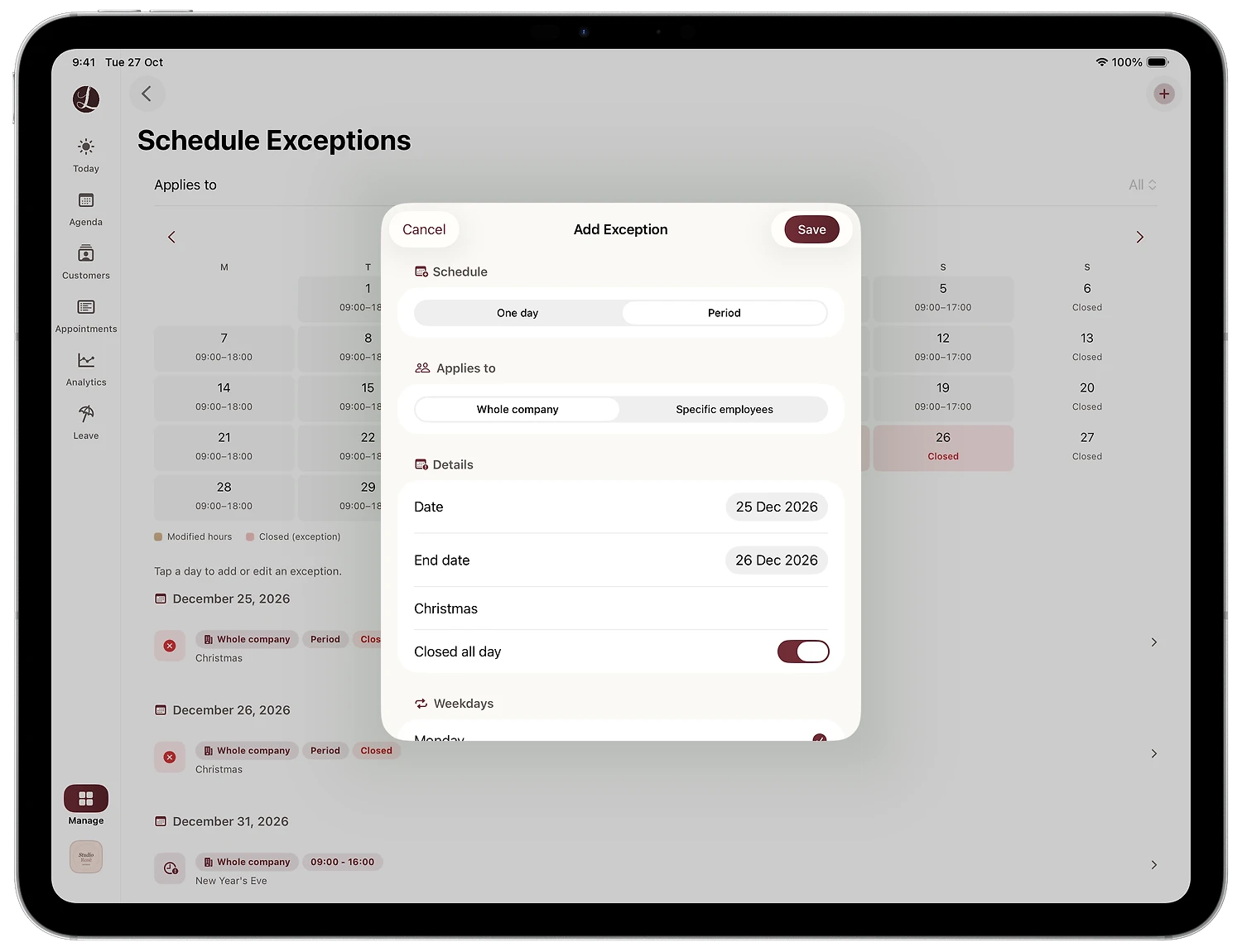
Tap the day you want to change, or the + button in the top right (Add Exception). In the Add Exception window you choose three things:
- Schedule: One day or Period. With Period, the fields End date and Weekdays appear as well.
- Applies to: Whole company or Specific employees.
- Details: the Date, a Description (optional) and the Closed all day switch.
Step 4: Close the salon for Christmas
In the Netherlands, Christmas Day and Boxing Day (25 and 26 December) are both public holidays, and most salons close. Choose Period and Whole company, set the Date to 25 December and the End date to 26 December. Type "Christmas" as the description so you can see later why the salon is closed. Keep Closed all day switched on and tap Save.
Step 5: Give New Year's Eve shorter hours
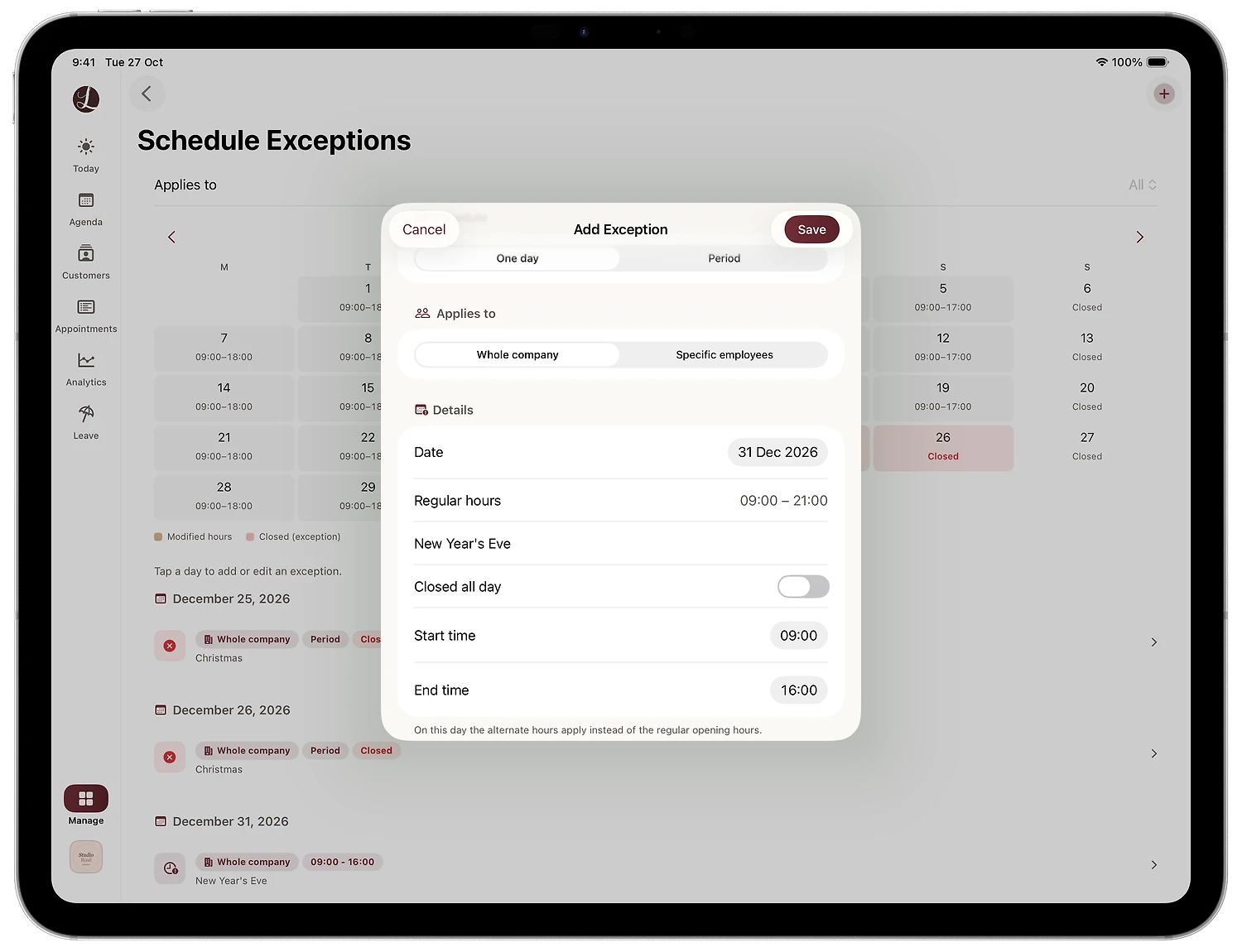
In 2026, New Year's Eve falls on a Thursday, the day of the late evening. Studio Rosé closes at 16:00 that day instead of 21:00. Choose One day, set the Date to 31 December and type "New Year's Eve" as the description. Under Regular hours you see the normal hours for that day as a reference.
Switch off Closed all day. Start time and End time appear: choose 09:00 and 16:00. Below them the app explains: "On this day the alternate hours apply instead of the regular opening hours." Tap Save.
Step 6: Check the result in the calendar
The calendar shows the change right away. Closed days are red and say Closed, days with alternate hours are beige. The legend below calls them Modified hours and Closed (exception). Under the calendar you see your exceptions per date, with tags such as Whole company, Period and Closed. Tap a row to edit that exception.
Tips for using special opening hours in your salon
Plan your holidays early
Add Christmas, New Year's Eve, New Year's Day and King's Day (27 April, the Dutch national holiday) in the autumn. Clients often book their Christmas haircut or their New Year's Eve nails weeks ahead. With your special hours in place early, nobody books a time when you are closed, and you don't have to call anyone afterwards.
Late evening: weekly or one-off
A weekly late evening goes into your regular opening hours, like Studio Rosé with Thursday from 09:00 to 21:00. Want to stay open late once in December? Add an exception for One day, switch off Closed all day and choose a later End time. Clients can book that evening online straight away.
One employee working different hours
If a stylist starts later one day or leaves early, choose Specific employees under Applies to. Lookster creates a separate exception for each selected employee, so the rest of the team stays bookable. At the top of the Schedule Exceptions screen, the Applies to filter shows all exceptions, only company-wide ones or those of a single employee. Is someone going on holiday? Read how to schedule staff time off.
Summer break or renovation: Period with Weekdays
If the salon closes for two weeks in summer, choose Period and fill in the End date. With Weekdays you decide on which days within that period the exception applies. The app tells you how many days you are about to create. A period can last up to 62 days.
What happens to online booking
In Lookster, clients only see times that are really free: within your opening hours and within the employee's working hours. A closed day disappears from your booking link, your salon page on Lookster and the Lookster app. If there are already appointments on a day you close, the app asks what to do with them: cancel them, keep them, or go back and adjust the exception.
Decided to open after all? Open the exception and delete it, or swipe the row to the left to remove it. For a period, you can remove the whole period in one go. The day is then open for online booking again right away.
Ready for the holidays with Lookster
With correct opening hours, clients only book what you can actually deliver, even while you are busy with a client yourself. Want more clients booking online? Read how to get more online bookings. You can try Lookster free for the first 3 months, no credit card needed. After that it costs €19.95 per month excl. VAT for 3 employees, with 0% commission on every booking. See all Lookster features.
Frequently asked questions
How do I close my salon on a public holiday in Lookster?
Go to Manage, Company Details, Opening hours & exceptions and tap Schedule Exceptions at the bottom. Tap the holiday in the calendar or the plus button in the top right, choose One day or Period, keep Applies to on Whole company and switch on Closed all day. After you tap Save, the day turns red in the calendar and clients can no longer book it online.
Can clients book online on a day my salon is closed?
No. In Lookster, clients only see times within your opening hours and within the working hours of your employees. When you close a day with a schedule exception, that day disappears from online booking. When you set alternate hours, only those hours can be booked. If you delete the exception later, the day is open for online booking again straight away.
Can I set different hours for just one employee?
Yes. In the Add Exception window, set Applies to to Specific employees and select the people it concerns. Lookster creates a separate exception for each selected employee, so the rest of your team stays bookable as usual. At the top of the Schedule Exceptions screen, the Applies to filter lets you show all exceptions, only company-wide ones or those of one employee.
How do I add a late opening evening to my salon schedule?
A weekly late evening belongs in your regular opening hours, for example Thursday from 09:00 to 21:00. For a one-off late evening, such as a Friday before Christmas, add an exception for One day, switch off Closed all day and choose a later End time. Clients can book that evening online right away, through your booking link and your salon page.
What happens to appointments already booked on a day I close?
If there are already appointments on a day you close with an exception, Lookster asks what should happen to them. You can cancel them, keep them, or go back and adjust the exception. That way you never close a day by accident while clients are still expecting to come in, and you decide per situation how to handle it.