In this article
To schedule staff time off in Lookster, open the Leave tab in the left-hand rail of the Lookster Dashboard app, tap +, choose the employee and the dates, and tap Schedule. The leave is Accepted straight away and appears in your agenda. Clients can't book that employee online during the leave, so they simply choose a colleague or another date. You don't have to block anything by hand.
Where do you find leave in the Lookster app?
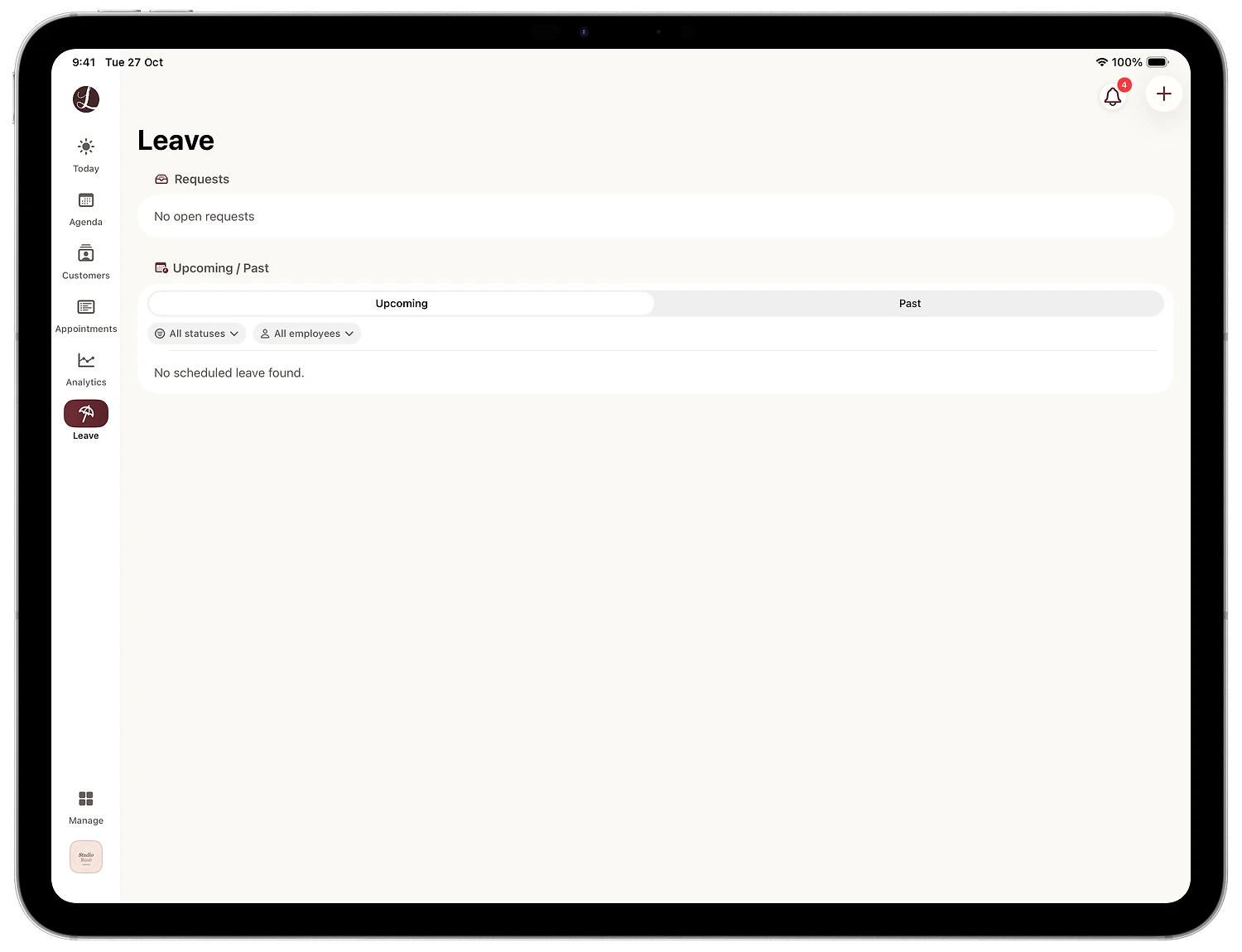
The Leave tab sits in the narrow rail on the left of the app, below Today, Agenda, Customers, Appointments and Analytics. The screen has two sections: Requests, where leave requests from your team come in, and Upcoming / Past, which lists all leave that is already confirmed. The All statuses and All employees filters keep the list manageable as your team grows.
The screenshots in this guide were taken on an iPad. The Lookster Dashboard app also runs on iPhone, Android and Windows, and you can manage leave in the browser dashboard just as easily. See all Lookster apps.
How to schedule time off in 5 steps
Step 1: open the Leave tab
Tap Leave on the left. If nothing is planned yet, you'll see "No open requests" and "No scheduled leave found". The + button is in the top right corner.
Step 2: tap + and choose the employee
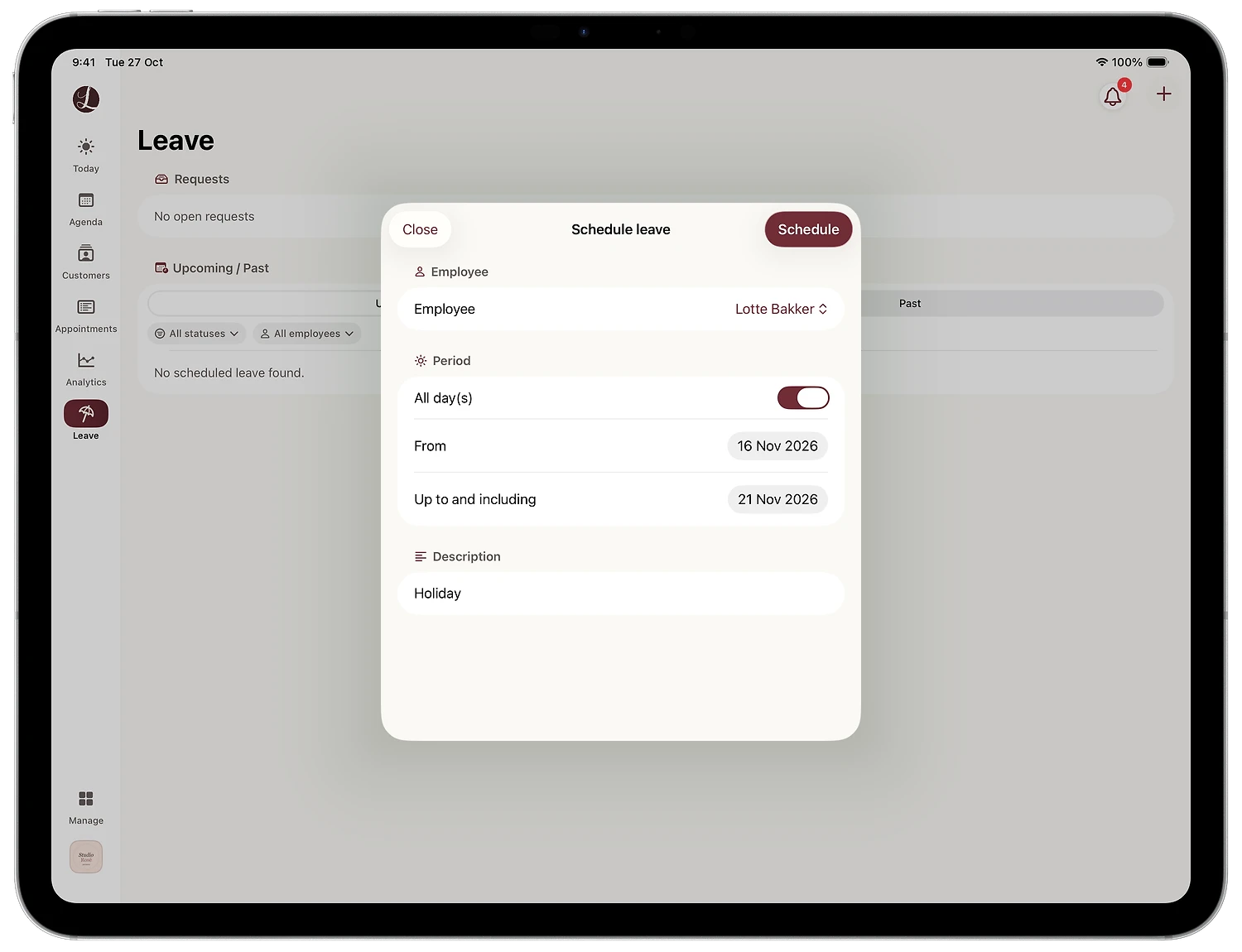
Tap + to open the Schedule leave window. Under Employee, pick the person who will be off, in this example Lotte Bakker.
Step 3: set the dates
Leave All day(s) switched on for a holiday or a full day off. Pick the first day off under From and the last one under Up to and including. The end date counts: leave from Monday 16 up to and including Saturday 21 November covers that entire week.
Only need a few hours? Switch All day(s) off and you choose the times as well, so the rest of the day stays bookable.
Step 4: add a description and tap Schedule
Description is optional. Type something like "Holiday", "Training course" or "Sister's wedding" so you know later what the leave was for. Then tap Schedule.
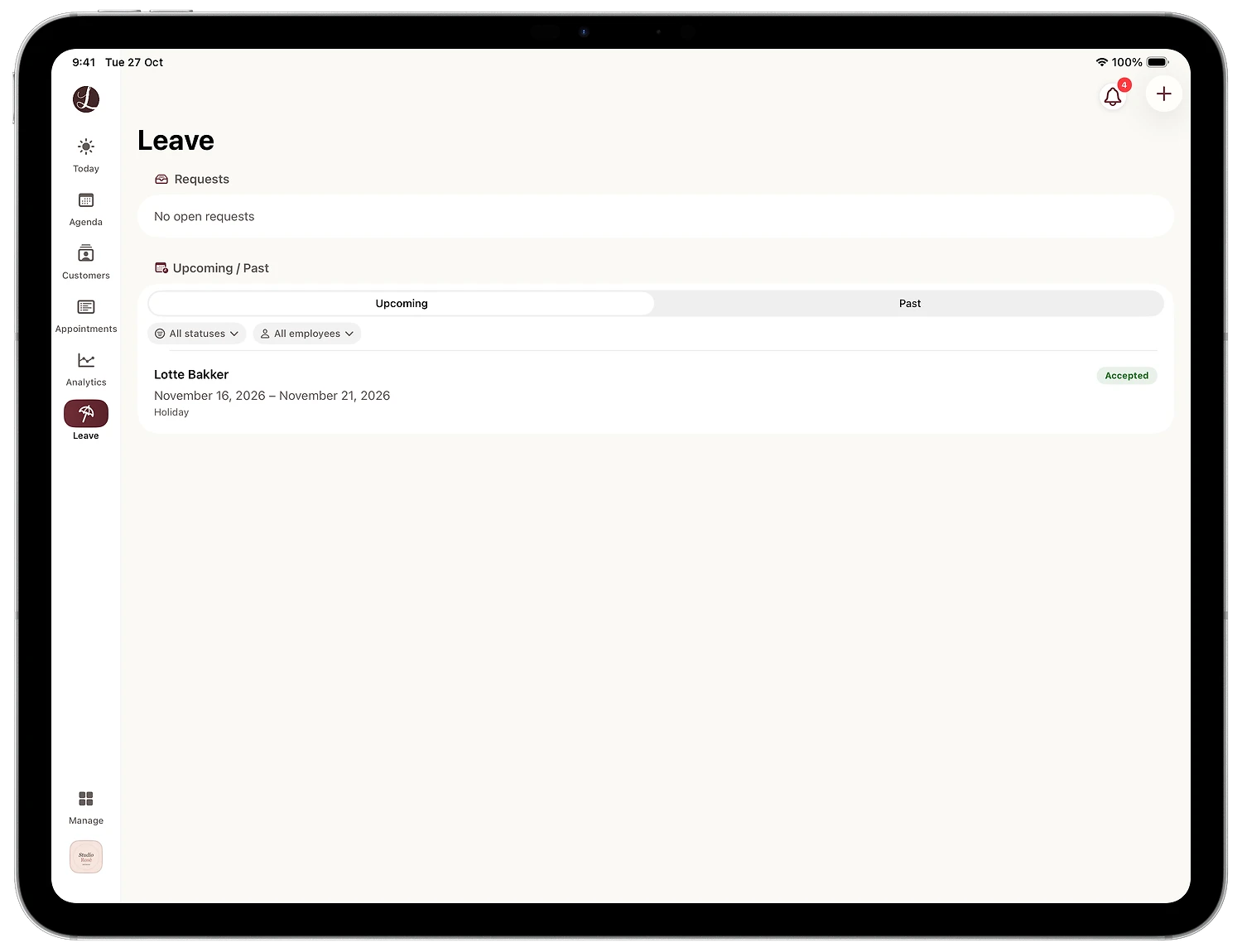
The leave now appears under Upcoming with the employee's name, the dates, the description and the status Accepted. Leave that you schedule yourself as the salon is approved immediately.
Step 5: check the leave in the agenda
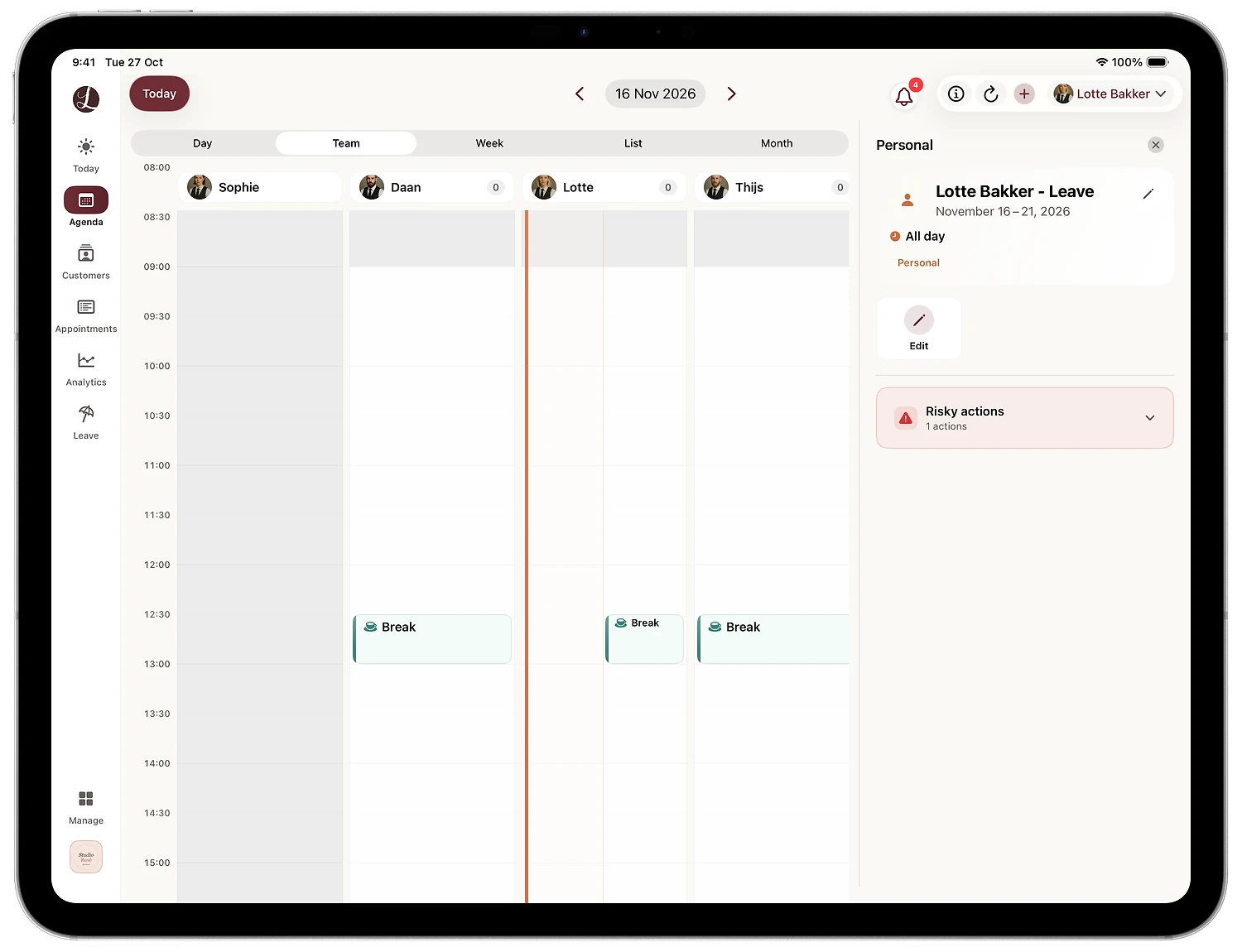
Open the Agenda and switch to the Team view. Go to a day within the leave period. An orange line in the employee's column marks the leave. Tap it and the Personal panel opens on the right, showing the name, the dates and "All day". Use Edit if you need to change the dates or the description later.
What does staff leave do to online bookings?
Once leave is scheduled, clients can't book that employee online during that period. Lookster only ever shows clients genuinely free times per employee and treatment, and an employee on leave has no free times in that window. That applies to your own booking link, your salon page on Lookster and the Lookster client app.
The rest of your team stays bookable. A client who wants a Saturday slot while Lotte is away sees the free times of the colleagues who offer that treatment. Your agenda keeps filling up, and nobody books an appointment with a stylist who isn't there. Read more on the online booking system page.
Can employees request time off themselves?
Yes. Every employee can get their own login to the employee panel, with their own agenda and permissions. From there they request leave through the same Leave tab, and you as the employer review the request.
The request lands under Requests at the top of your Leave screen. You approve it in the app, and approved leave works in the agenda and for online booking exactly like leave you schedule yourself. That saves you chasing WhatsApp messages and notes in the staff room: every request is in one place, and you can see at a glance who wants which days off.
Tips for managing staff holidays in your salon
Lock in summer holidays early. Ask your team in spring to pass on their holiday dates and schedule them right away. Clients who book an August appointment back in June will then only see the people who are actually working. You won't have to call anyone later to move their appointment.
Schedule short absences too. A doctor's appointment, a parents' evening or a half-day course: switch All day(s) off and set the hours. Only that time is closed, and the rest of the day stays bookable.
Move existing appointments first. If there are already appointments in the period, the app flags a conflict. Contact those clients first (you can call or message them straight from the app) and move them to a colleague or another date. Then schedule the leave with nothing left hanging.
Keep an overview of the whole team. On the Leave screen, Upcoming shows all time off coming up, and All employees lets you filter on one person. In the agenda, the Team view shows per day who is working and who is off. You can see at a glance whether you have enough hands on a busy Saturday.
Whole salon closed? Use a schedule exception. Leave is for one employee. When the whole salon closes, for example over Christmas, you add a schedule exception to your opening hours instead. Our guide on how to set special opening hours walks you through it. Regular working hours and breaks per employee are under Manage → Company Details → Opening hours & exceptions → Working hours per employee.
Time off, rotas and online booking in one system
With Lookster, leave, working hours, appointments and online bookings all live in one online agenda that updates in real time. Schedule someone's time off and your booking page is correct immediately. You can try Lookster free for 3 months without a credit card. After that it's €19.95 per month excl. VAT (Dutch BTW), including 3 employees, with 0% commission on every booking. Explore all features for your salon and team or read how to get more online bookings.
Frequently asked questions
Can clients book online with an employee who is on leave?
No. As soon as you schedule leave in Lookster, clients can’t book that employee online during that period. Your booking link, your salon page and the Lookster app only show genuinely free times per employee. Colleagues who offer the same treatment stay bookable, so clients automatically move on to someone else or pick another date.
Can employees request time off themselves in Lookster?
Yes. An employee with their own login to the employee panel requests leave through the Leave tab. The request arrives at the salon under Requests, and you review and approve it in the app. Leave you schedule yourself as the owner is accepted straight away. That way every request and all planned time off for your team sit in one place.
What happens to appointments that are already booked during the leave?
If there are already appointments in the period you want to block, the Lookster app flags a conflict, so you can see straight away which clients are affected. The easiest approach is to move those appointments to a colleague or another date first and then schedule the leave. After that, no new online bookings can be made with that employee during the leave.
Can I schedule half a day or just a few hours off?
Yes. In the Schedule leave window, switch off All day(s) and you pick the times as well as the date. That works well for a doctor’s appointment, a training course or a parents’ evening. Only those hours are closed for online booking, and the employee stays bookable for the rest of the day.
What is the difference between staff leave and a schedule exception?
Leave applies to one employee, for example a week’s holiday or a free afternoon. A schedule exception on your opening hours is for when the whole salon is closed or has different hours, such as over Christmas. An exception can also apply to specific employees. Both show up in your planning, and clients can’t book online at times that are closed.