In this article
To book a recurring appointment in Lookster, go to Manage and then Recurring appointments. Tap +, choose the employee, pick the customer and treatment, and set how often the appointment repeats, for example every 4 weeks. Lookster adds the appointments to your calendar right away and keeps that slot reserved for your regular client. Below you will find every step, with screenshots from the iPad app.
What is a recurring appointment in Lookster?
A recurring appointment is a series of bookings with the same client, treatment, employee and start time at a fixed interval. Think of a client who comes in for a cut every 4 weeks on Tuesday at 10:00. You set up the series once and Lookster schedules the appointments for you, so you no longer have to add the next visit to the calendar by hand after every treatment.
You can create recurring appointments in the Lookster Dashboard app (iPhone, iPad, Android and Windows) and in the dashboard in your web browser. The screenshots below were taken on an iPad.
How to book a recurring appointment, step by step
1. Open Recurring appointments
Tap Manage at the bottom of the left-hand bar and choose Recurring appointments. You can also start a recurring appointment from the calendar.
2. Choose the employee
Tap + in the top right corner. First you choose which employee the client sees regularly, for example Sophie de Vries. The Recurring appointment window then opens.
3. Pick the customer and treatment
Under Details, tap Customer and search by name, email or phone. If the client is not in your customer list yet, choose Create new customer. Then pick the Treatment, for example Knippen & föhnen dames (the demo salon’s ladies’ cut and blow-dry).
4. Add an add-on if you like
If the treatment has add-ons, they appear under Add-ons. Tick whatever the client gets every time, such as a head massage. The Total shows the price of the full appointment straight away. Our guide on creating and reusing add-ons explains how to set them up.
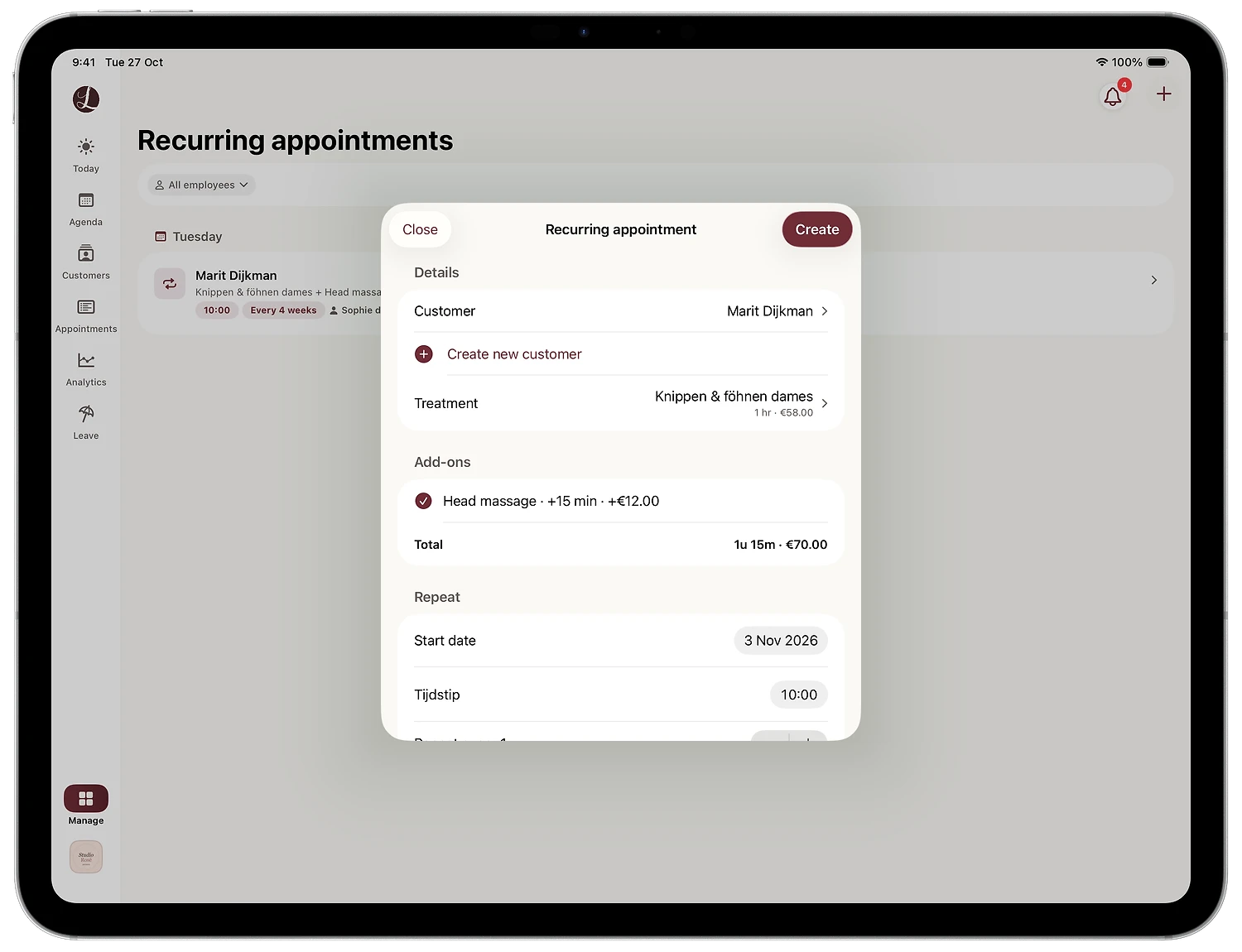
5. Set the repeat pattern
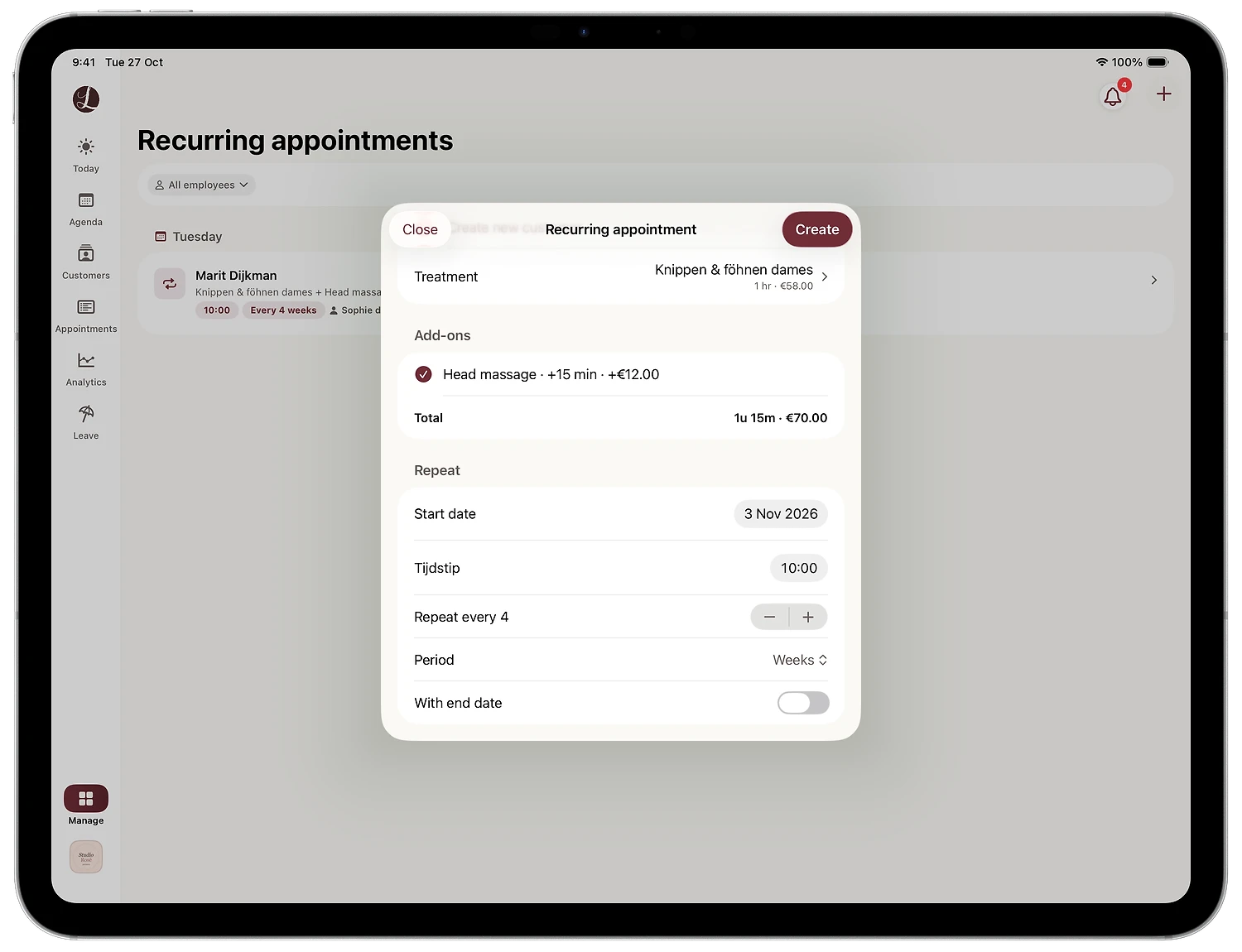
Scroll down to Repeat and fill in:
- Start date: the date of the first appointment, for example 3 November 2026.
- Start time: when the appointment begins, for example 10:00.
- Repeat every: the number, using the minus and plus buttons. For every 4 weeks, set it to 4.
- Period: Weeks, days or months.
- With end date: leave this off for an ongoing series. If the series should stop on a certain date, switch it on.
6. Tap Create
Tap Create in the top right corner. The series now appears in the list, grouped by weekday. For each series you see the client, the treatment with its add-on, the time, the interval and the employee. Lookster adds the appointments to the calendar immediately; in this example on Tuesday 3 November and Tuesday 1 December 2026.
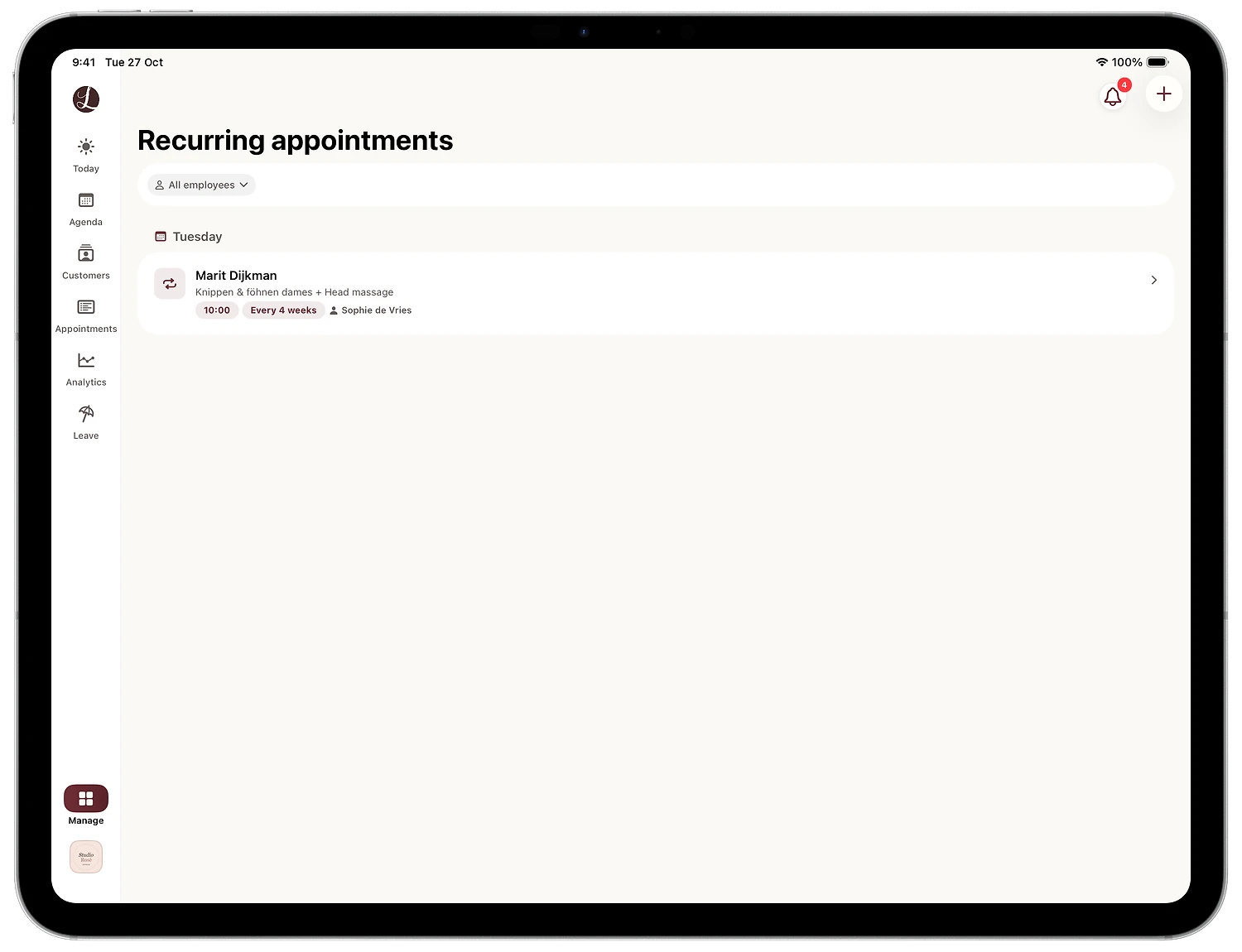
7. View or edit the series
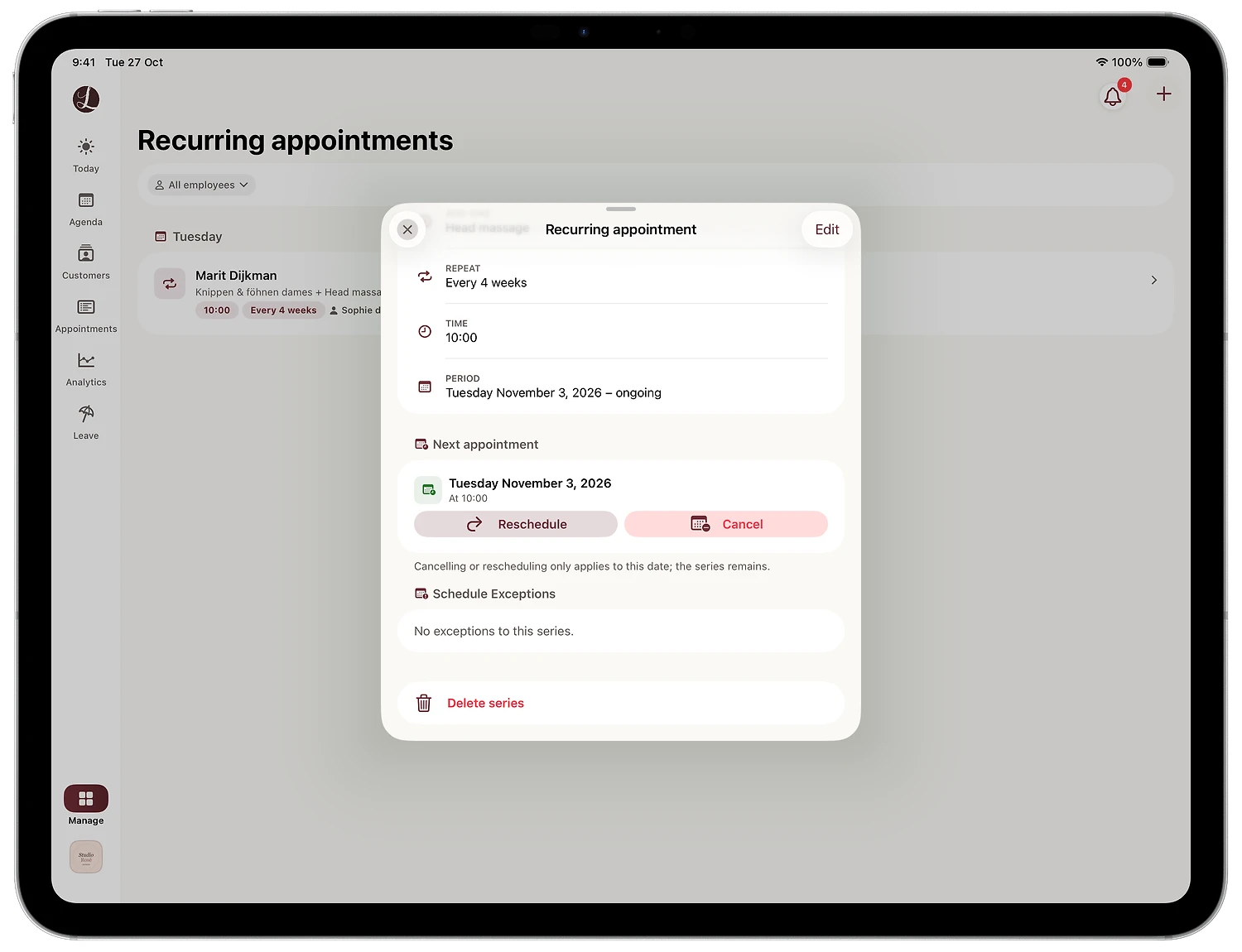
Tap the series to open the details. You see the Repeat setting (Every 4 weeks), the start time, the Period (from Tuesday November 3, 2026, ongoing) and the next appointment. Tap Edit in the top right corner to change the series. If the client stops coming for good, choose Delete series at the bottom.
How to move or skip one appointment in the series
If your client is away once or the usual day does not suit for a week, you do not need to change the series. Under the next appointment you will find Reschedule and Cancel. As the app itself explains, cancelling or rescheduling only applies to that date; the series remains. Dates that differ are listed under Schedule Exceptions.
Tips for getting more out of recurring appointments
Which interval suits which treatment?
Choose the interval that fits the treatment and the client. A few common examples:
| Treatment | Typical interval | Setting in Lookster |
|---|---|---|
| Root colour touch-up | every 4 to 6 weeks | Repeat every 4, 5 or 6, Period Weeks |
| Fade or beard trim at the barber | every 2 to 3 weeks | Repeat every 2 or 3, Period Weeks |
| Nail infills (gel or acrylic) | every 3 weeks | Repeat every 3, Period Weeks |
| Haircut | every 4 to 8 weeks | Repeat every 4 to 8, Period Weeks |
For barbershops, regulars every two or three weeks are often what keeps the chair full. Read more in our guide to a barbershop booking system.
Book the series while the client is still in the chair
The best moment to suggest a recurring appointment is at the end of the treatment, when the client is happy with the result. "Shall I book you in every 4 weeks, Tuesday at 10:00?" is a small question with a big effect. Your client no longer has to remember to book, and you know weeks in advance where you stand.
Your regulars keep their slot
Because the appointments in the series sit in your calendar, nobody else can book that time online. Clients who book through your booking link, your salon page on Lookster or the Lookster app only see times that are genuinely free. Your regular client keeps their familiar Tuesday morning, and you avoid double bookings.
Fewer forgotten appointments
An appointment booked weeks ahead is easier to forget. Lookster sends your client a confirmation and a reminder 24 hours before the visit by email and push notification, free and without text message costs. For more ways to keep chairs filled, read how to prevent no-shows in your salon.
Make the add-on part of the routine
If a client always has the same extra, such as a head massage, include the add-on in the series. The price and duration are then right every time, and the calendar reserves the correct amount of time.
Recurring appointments in Lookster
Recurring appointments help you keep your best clients and plan your calendar weeks ahead, without hunting for a free slot every time. Lookster includes them as standard, together with online booking, email and push reminders, add-ons and apps for iPhone, iPad, Android and Windows. You can try Lookster free for the first 3 months, no credit card needed, and after that it costs €19.95 per month excluding VAT, with 0% commission on all your bookings.
Frequently asked questions
How do I book an appointment that repeats every 4 weeks?
In Lookster, open Manage and then Recurring appointments, tap the plus button and choose the employee. Pick the customer and treatment, set the start date and start time, set Repeat every to 4 and Period to Weeks, then tap Create. Lookster adds the appointments to the calendar straight away and shows the series in the list as Every 4 weeks, with the time and employee.
Can I skip or move one appointment in a recurring series?
Yes. Open the series from the list. Under the next appointment you will find the Reschedule and Cancel buttons. Whatever you do there only applies to that one date, and the series itself stays in place. So if your client is on holiday once, you do not need to rebuild the whole series. Dates that differ show up under Schedule Exceptions.
Does my client get a reminder for a recurring appointment?
Yes. A recurring series consists of regular appointments in your calendar, so your client receives a confirmation and a reminder 24 hours before each visit by email and push notification. That is free and comes without any text message costs. Reminders matter most for appointments booked weeks ahead, because a date agreed months ago is easy to forget.
Can someone else book my regular client’s slot online?
No. Lookster places the appointments of the series in the calendar of the chosen employee. Clients who book online through your booking link, your salon page or the Lookster app only see times that are genuinely free. Your regular client’s Tuesday 10:00 slot never appears as available, so you avoid double bookings.
Can I set up recurring appointments on my computer as well?
Yes. Recurring appointments are available in the Lookster Dashboard app for iPhone, iPad, Android and Windows, and in the dashboard in your web browser. Everything syncs live, so a series you create on the iPad at the front desk shows up on your phone or computer right away. That way you can book the next visits while your client is still at the desk.