In this article
Add-ons let you offer extras with a treatment, such as a head massage with a haircut, that clients choose themselves when they book with you. In the Lookster Dashboard app you find them under Manage → Treatments, in the Add-ons tab. You create an add-on in the last step of a new treatment, and with Reuse existing add-on you attach the same add-on to another treatment in a few taps.
What are add-ons in Lookster?
An add-on is an optional extra that belongs to a treatment, with its own name, price and duration. The client books the treatment and adds the extra if they want it. The app puts it simply: add-ons are optional extras that customers can book with this treatment.
Lookster takes care of two things for you:
- The duration counts. A 15-minute head massage on top of a one-hour haircut turns the appointment into 1 hour and 15 minutes, so your calendar keeps exactly enough time free.
- The right employees. Add-ons automatically use the linked employees for the treatment. There is nothing extra to set up.
How do you create an add-on in Lookster?
The quickest way is to create the add-on while you add a new treatment. That wizard has three steps: Details, Employees and Add-ons. How to fill in the first two is explained in how to add a treatment in Lookster.
- Go to Manage → Treatments and tap + in the top right. The New treatment window opens.
- Fill in Details and Employees, tapping Next after each step. You arrive at step 3, Add-ons.
- Tap New add-on. A block called Add-on 1 appears with the fields Add-on name, Price and Duration. The duration is 15 min by default.
- Fill in the add-on, for example "Head massage", €12 and 15 min. Want more extras? Tap New add-on again. A block you don't need can be removed with Delete.
- Tap Create. The treatment now appears in your list, showing how many add-ons it has.
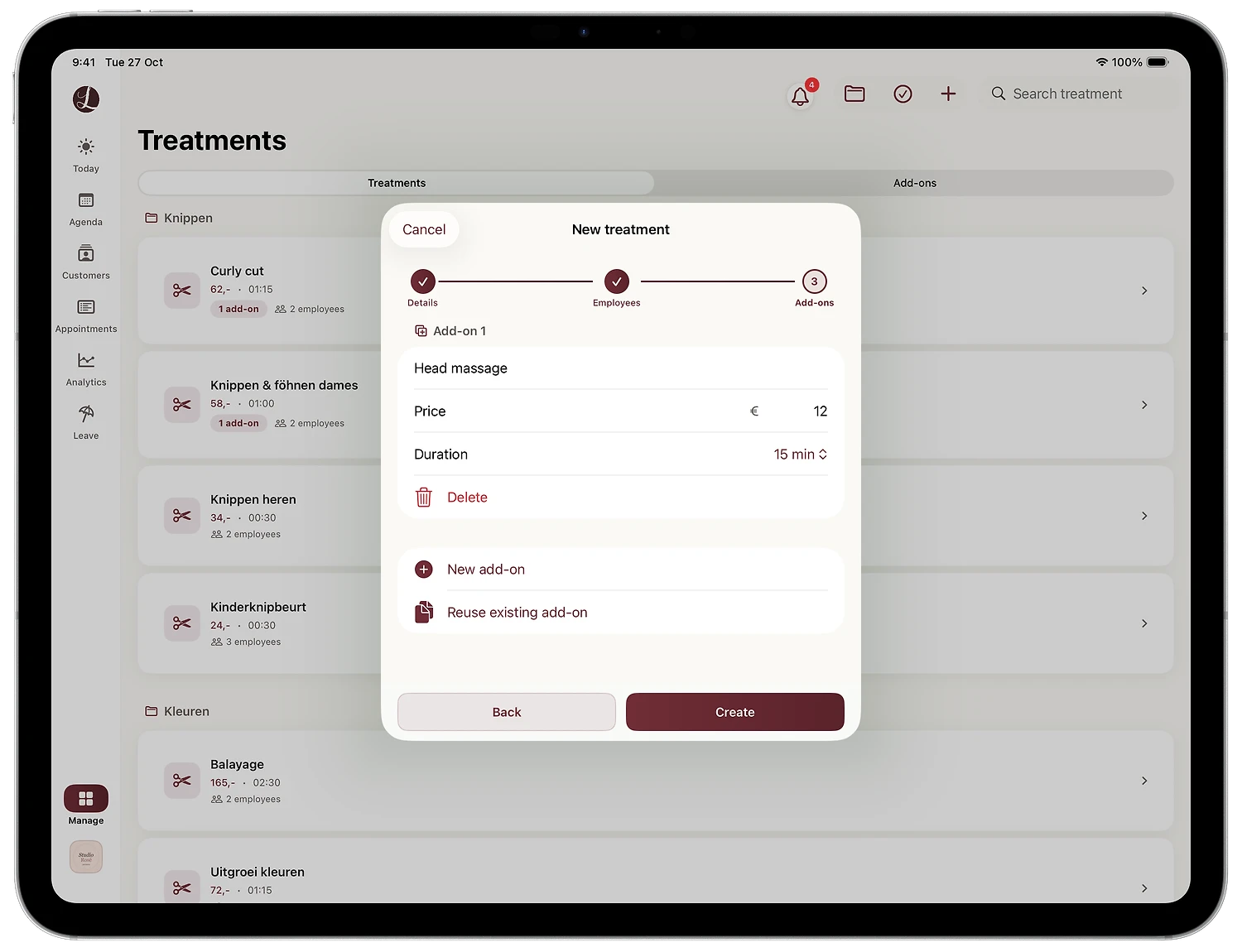
As soon as other treatments have add-ons, this step also shows Reuse existing add-on. For a treatment that already exists, you add an add-on from its detail card with Add add-on.
How do you reuse an add-on with another treatment?
Once an add-on exists, you never have to type it again. In the example below, the head massage already belongs to "Curly cut", and we add it to the women's cut and blow-dry, which is called "Knippen & föhnen dames" in our Dutch demo salon.
- In the Treatments list, tap the treatment that should get the add-on. Its detail card opens, with Done in the top right.
- Scroll down to the Add-ons section. If it is still empty, you see "No add-ons yet." with Add add-on and Reuse existing add-on below it.
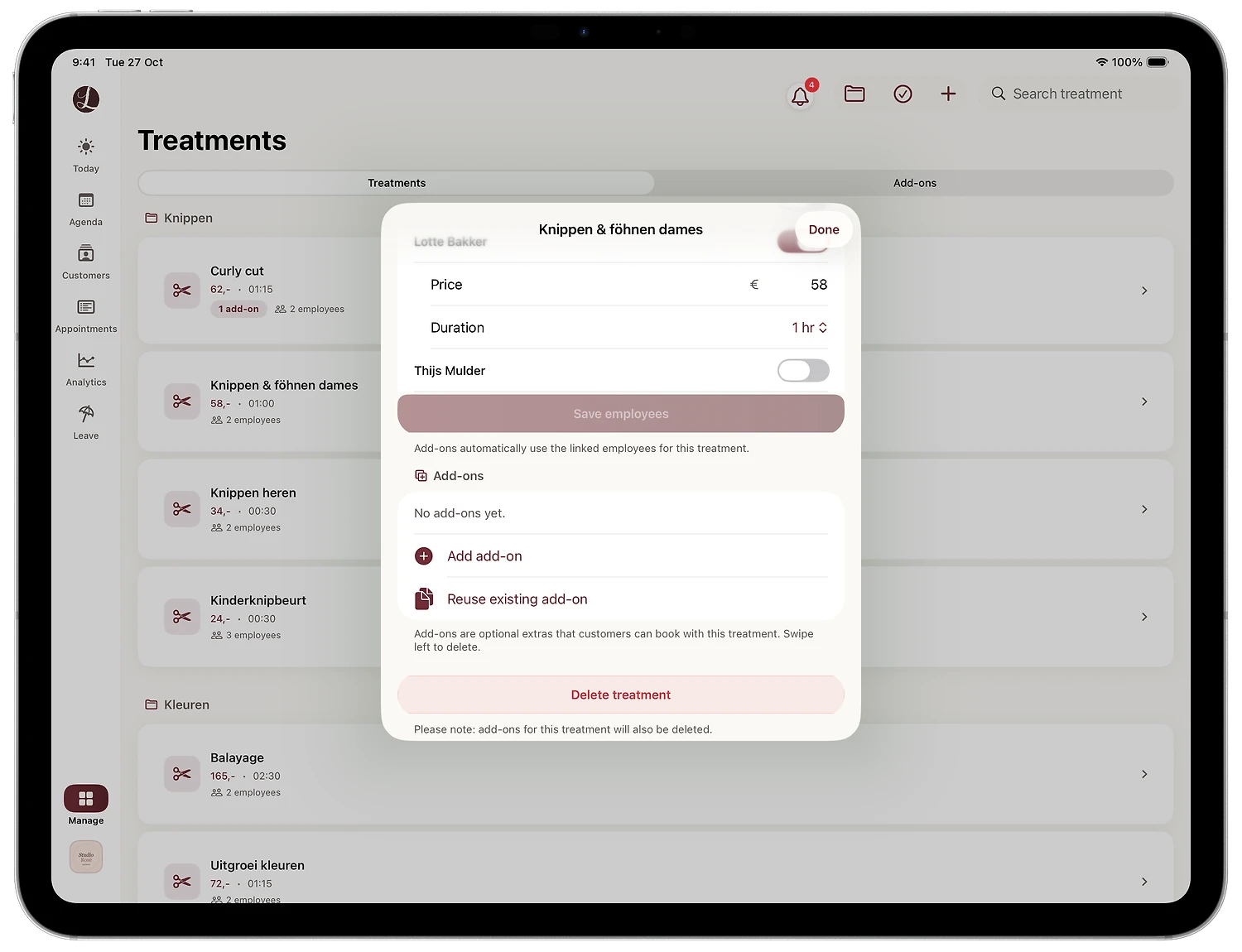
- Tap Reuse existing add-on. The Reuse add-ons window opens. Each add-on shows its price, its duration and which treatment it is used with. At the top, Lookster explains what happens: "Lookster creates a copy for this treatment. You can adjust the price and duration per treatment afterwards."
- Select the add-on you want and tap Add (1).
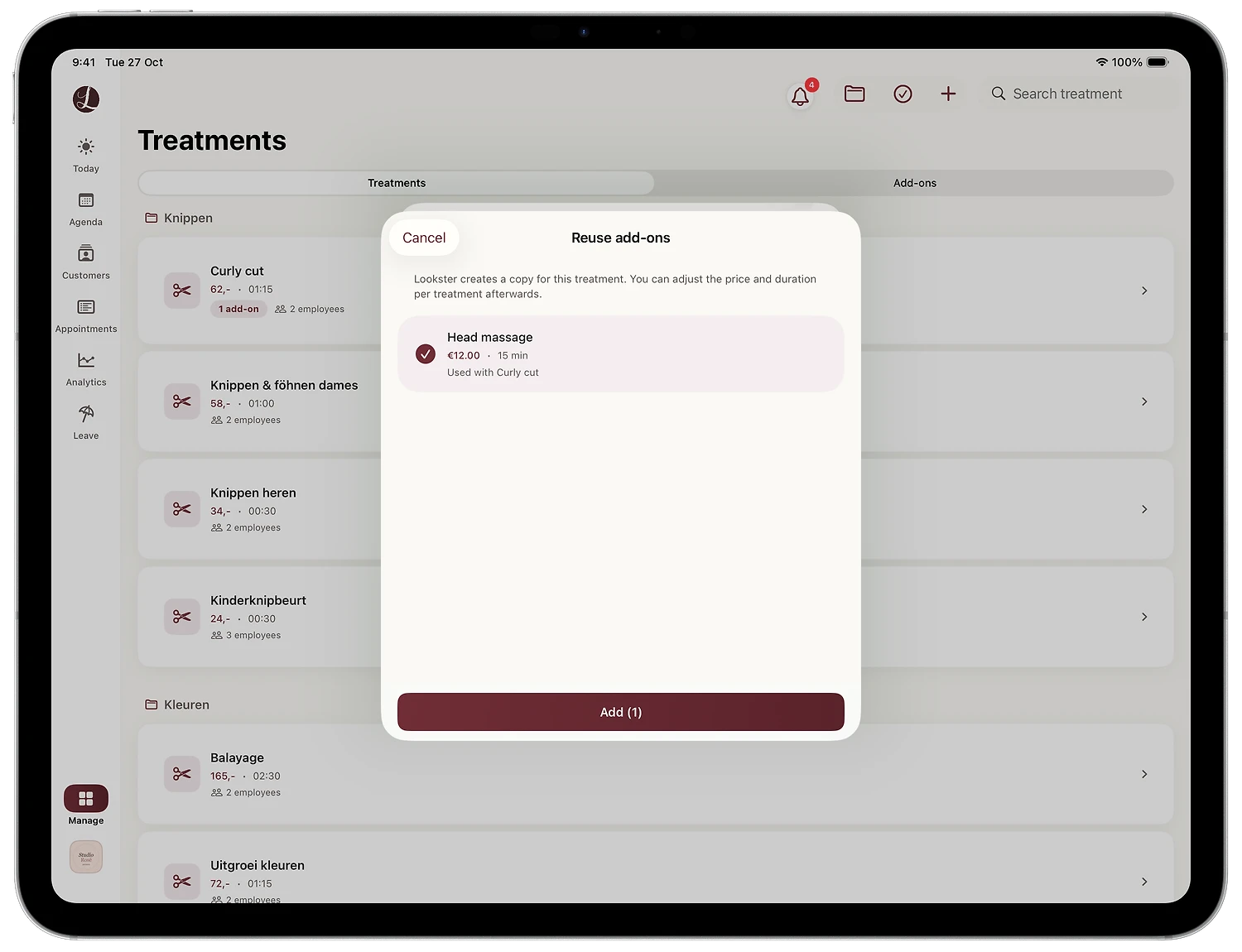
- The add-on now appears under Add-ons for this treatment. Tap Done.
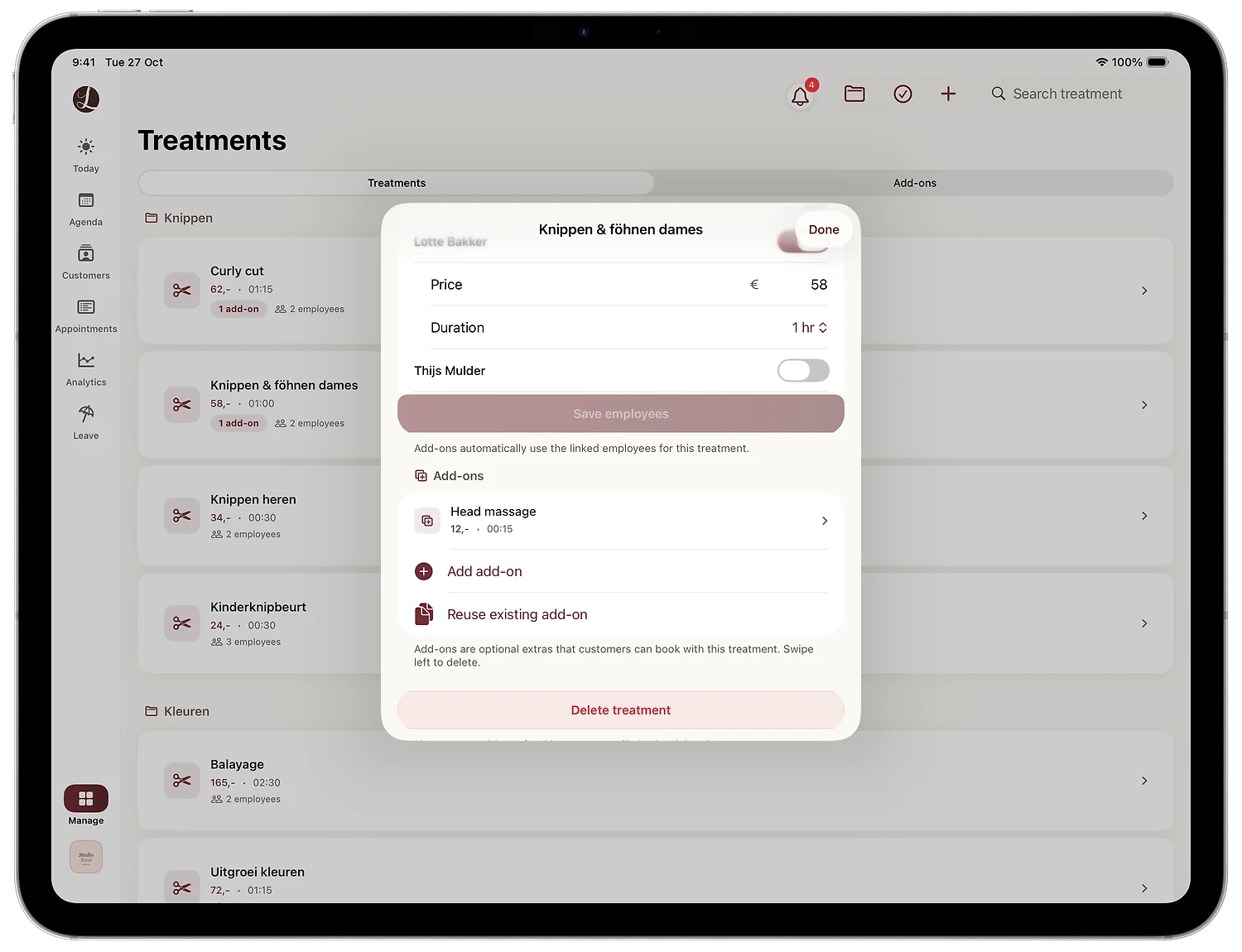
- Check the result in the Add-ons tab, where your add-ons are grouped per treatment.
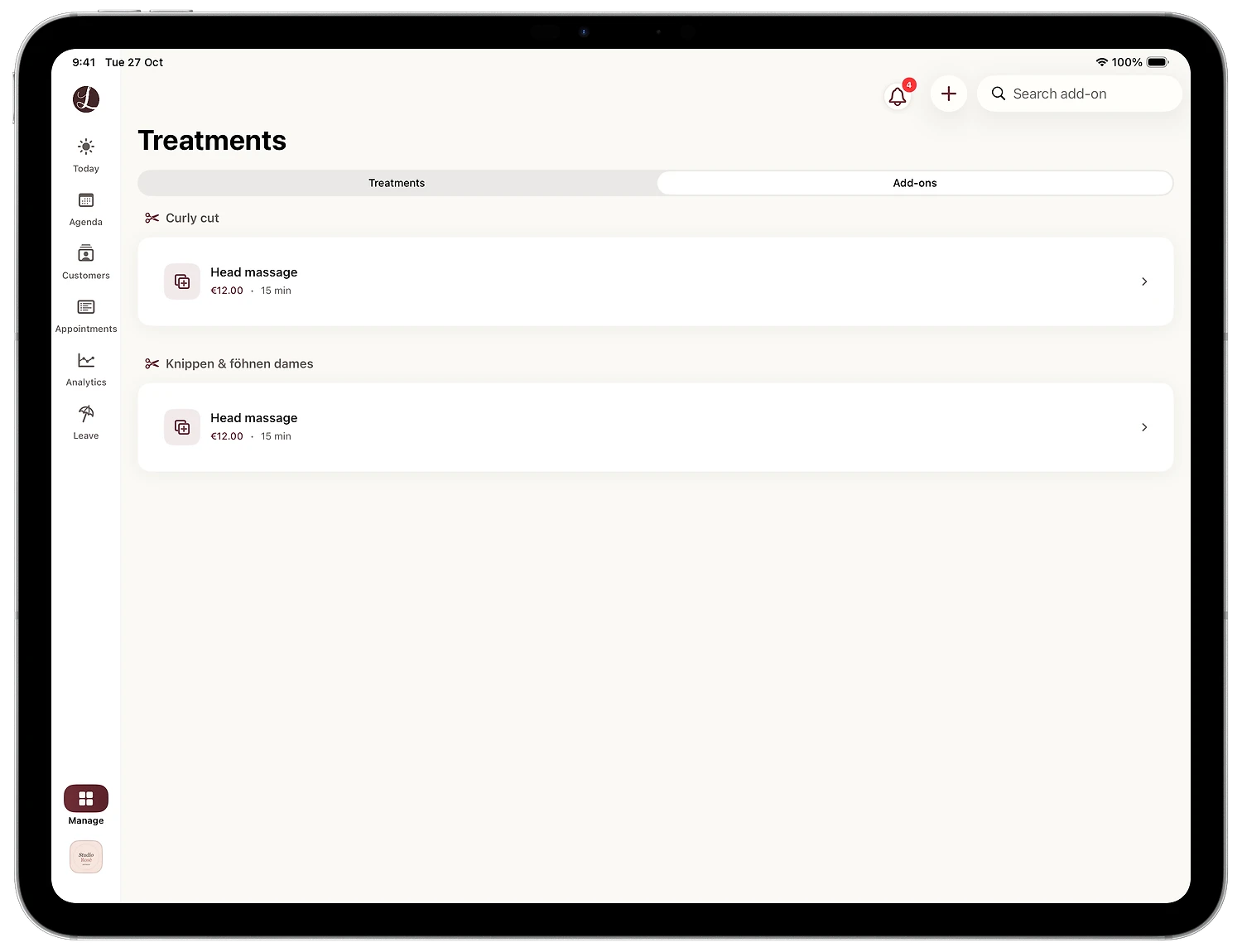
Because the reused add-on is a copy, you set its price and duration per treatment. Changing it on one treatment does not affect the other. An add-on you no longer want to offer can be removed by swiping left in the add-on list.
How do clients choose an add-on when they book?
Clients pick add-ons themselves when they book online: through your own booking link, your salon page on Lookster or the Lookster app. They only see times that are genuinely free, and the duration of the extra counts towards the appointment.
When you book an appointment yourself in the app, for example a recurring appointment, an Add-ons section appears below the chosen treatment. Tick the head massage and the Total immediately shows the new duration and price, in our example 1 hour 15 minutes for €70.
Which add-ons work well in a salon?
The best add-ons are small extras that most clients want now and then and that need no preparation. Some examples from everyday salon life:
- Hair salon: head massage with a haircut, an extra blow-dry or blow-dry styling for long hair, a hair mask with colour.
- Nail salon: French tips with gel polish, nail art per nail, extra length with a new set.
- Beauty salon: brow shaping or tinting with a facial, an extra mask.
- Barbershop: beard trim with a haircut, a hot towel.
Why add-ons raise your average ticket
A client who is already in your chair finds it easy to say yes to a small extra. When that extra is visible at the moment of booking, you don't even have to ask. Every €12 head massage that gets added is extra revenue on an appointment you already had.
Why your calendar stays accurate
An extra agreed on the spot pushes back the rest of your day. With an add-on, the extra time is in the calendar from the start, because the duration counts. Your next client isn't kept waiting, and your calendar shows what each appointment really takes.
Practical tips
- Use names clients understand. "Head massage (15 min)" says more than an internal abbreviation.
- Create an add-on once and reuse it. Then fine-tune price and duration per treatment, for example 10 minutes with a men's cut and 15 with a women's cut.
- Keep it short. Two or three focused extras per treatment get picked more often than a long list.
- Mind what you delete. If you delete a treatment, its add-ons go with it. Because reused add-ons are copies, the same add-ons on your other treatments stay where they are.
Manage add-ons on iPad, iPhone, Android, Windows and in the browser
The screenshots above come from the Lookster Dashboard app on iPad. The same app is available for iPhone, Android and Windows, and the full dashboard also works in your browser. There, too, you create add-ons and reuse them when you edit a treatment. Everything syncs live, so an add-on you create on your iPad in the morning is online for your clients right away.
Ready to offer add-ons yourself? You can try Lookster free for 3 months, no credit card needed. After that it costs €19.95 per month excl. VAT, including 3 employees and with 0% commission on your bookings. To see how online booking works for your clients, visit the page about the online booking system.
Frequently asked questions
What is an add-on in salon booking software?
An add-on is an optional extra attached to a treatment, with its own price and duration. Think of a head massage with a haircut, an extra blow-dry or a French tip with gel polish. In Lookster you link add-ons to a treatment and clients choose them themselves when they book online. The duration counts towards the appointment, so your calendar reserves the right amount of time and the price is correct straight away.
Can I use the same add-on with several treatments?
Yes. In Lookster, open the treatment that should get the add-on, tap Reuse existing add-on in the Add-ons section, select the add-on and tap Add. Lookster then creates a copy for that treatment. That way you set up a head massage or an extra blow-dry once and add it to all your haircut treatments in a few taps, without retyping names, prices or durations.
If I change the price of a reused add-on, does it change everywhere?
No. A reused add-on in Lookster is a separate copy per treatment. You can adjust its price and duration for each treatment afterwards, for example a shorter head massage with a men’s cut and a longer one with a women’s cut and blow-dry. Changing it on one treatment leaves the others untouched, so you stay in control of your prices without accidentally changing something elsewhere.
Does the add-on duration count in the calendar?
Yes. If a client adds a 15-minute add-on to a one-hour treatment, the appointment in Lookster becomes 1 hour and 15 minutes, and the add-on price is added to the total. Nobody gets booked into the time of the head massage, and your calendar shows exactly how long each appointment really takes. That keeps your day on schedule and your team relaxed.