In this article
To add a treatment in Lookster, go to Manage → Treatments → +. In three short steps you give the treatment a name, price, duration and category, choose which employees perform it and add optional add-ons. Each employee can have their own price and duration, so your senior stylist can charge more and your junior can get extra time. Clients can book the new treatment online right away.
Where are treatments in Lookster?
In the Lookster Dashboard app, your treatments live under Manage (bottom left of the sidebar) → Treatments. At the top there are two tabs: Treatments and Add-ons. The list is grouped by category and shows the price, the duration and the number of employees for each treatment.
The screenshots in this guide were taken on an iPad. The Lookster Dashboard app is also available for iPhone, Android and Windows, and the browser dashboard has the same Treatments section. The demo salon in the screenshots is Dutch, so its categories and existing treatments have Dutch names such as Knippen (cutting) and Kleuren (colouring).
How to add a new treatment, step by step
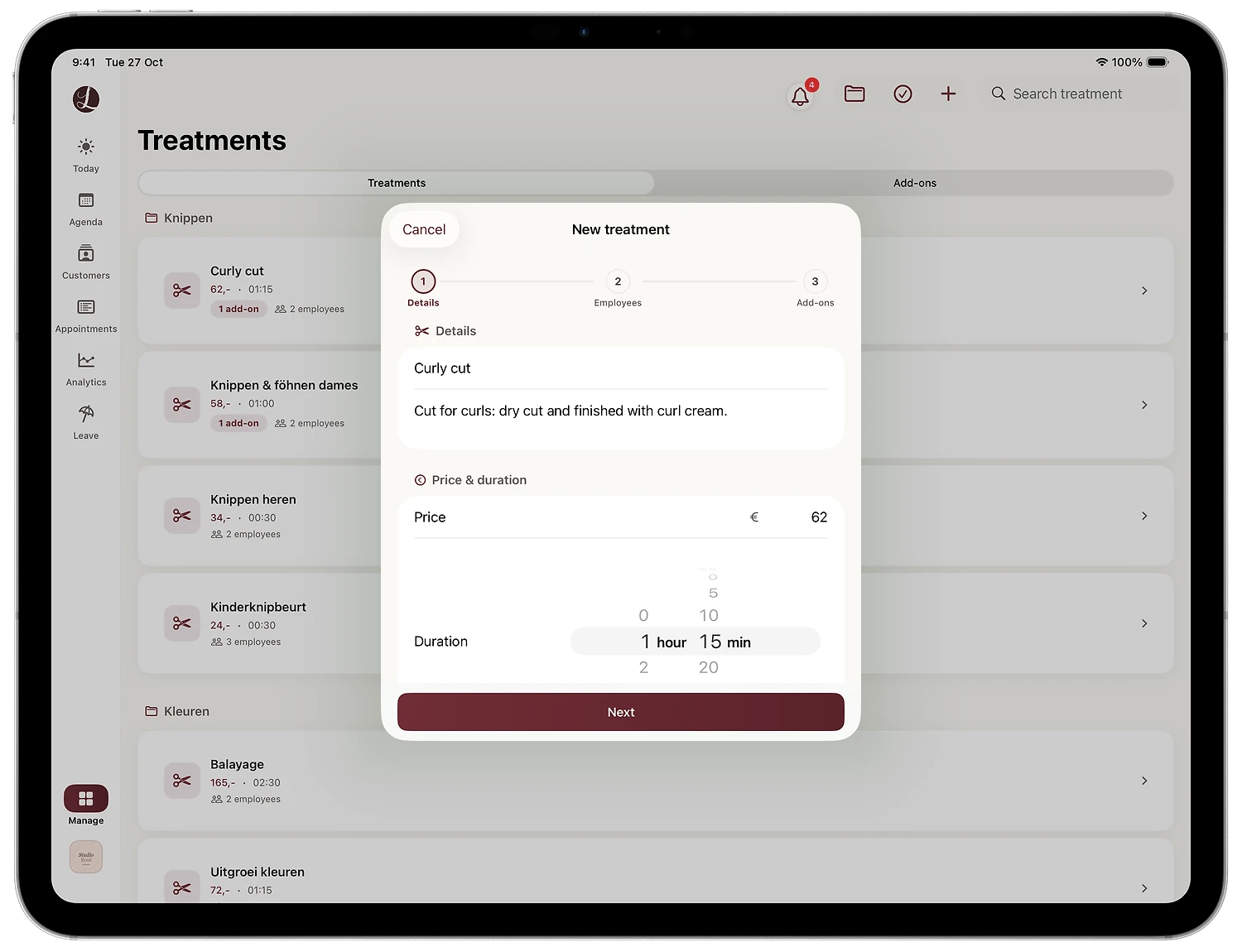
As an example, we add a Curly cut to the menu of a hair salon. The New treatment window has three steps: Details, Employees and Add-ons.
Step 1: name, description, price and duration
- In the Treatments list, tap + in the top right. The New treatment window opens at Details.
- Enter the name, for example Curly cut, and an optional short description. Clients read the description when they book, so tell them what they get.
- Under Price & duration, enter the Price in euros.
- Set the Duration with the hour and minute wheels, here 1 hour 15 minutes.
Step 2: choose a category
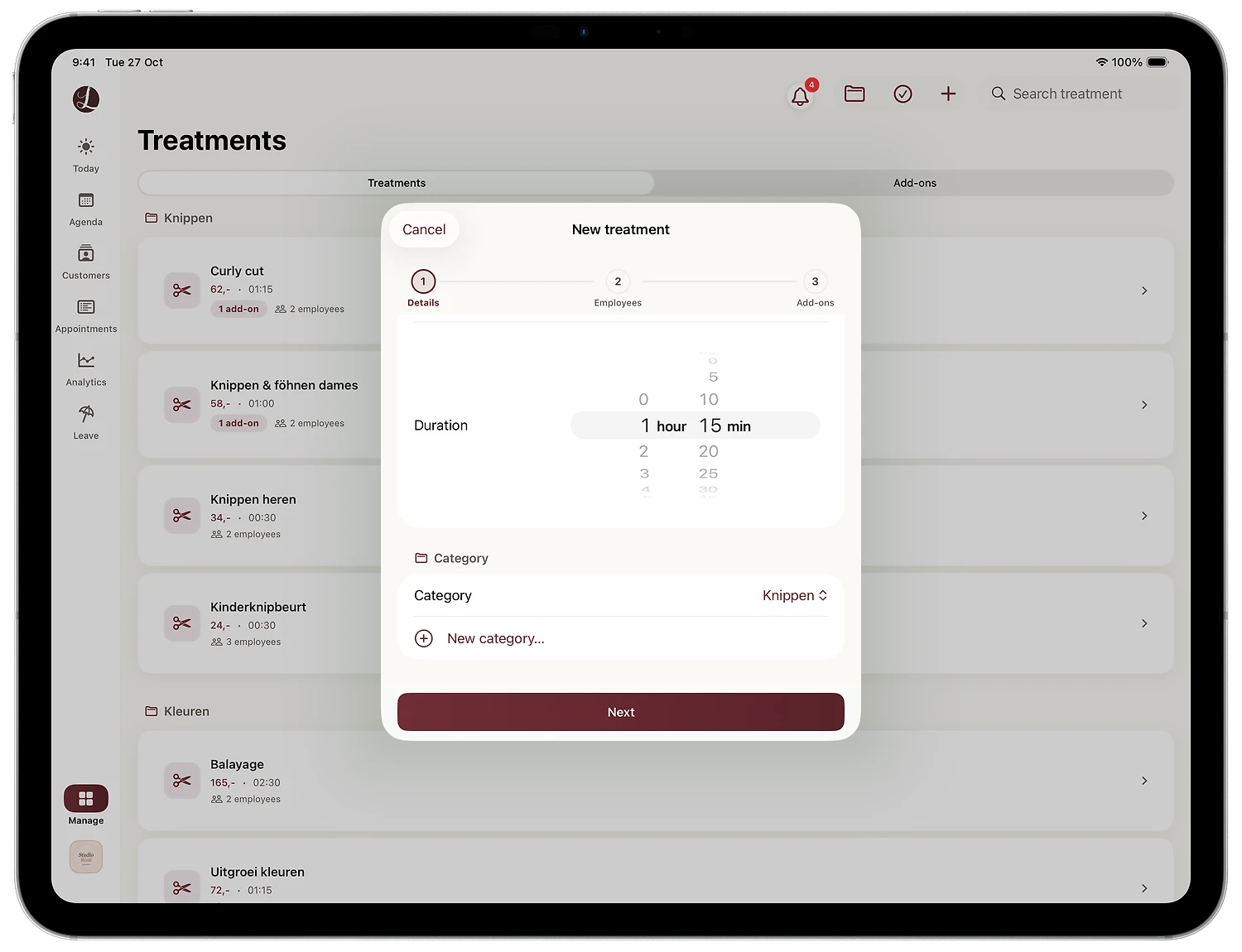
- Scroll down in the same window to Category and pick an existing category, such as Knippen. If the treatment does not fit anywhere, tap New category….
- Tap Next.
Step 3: link employees with their own price and duration
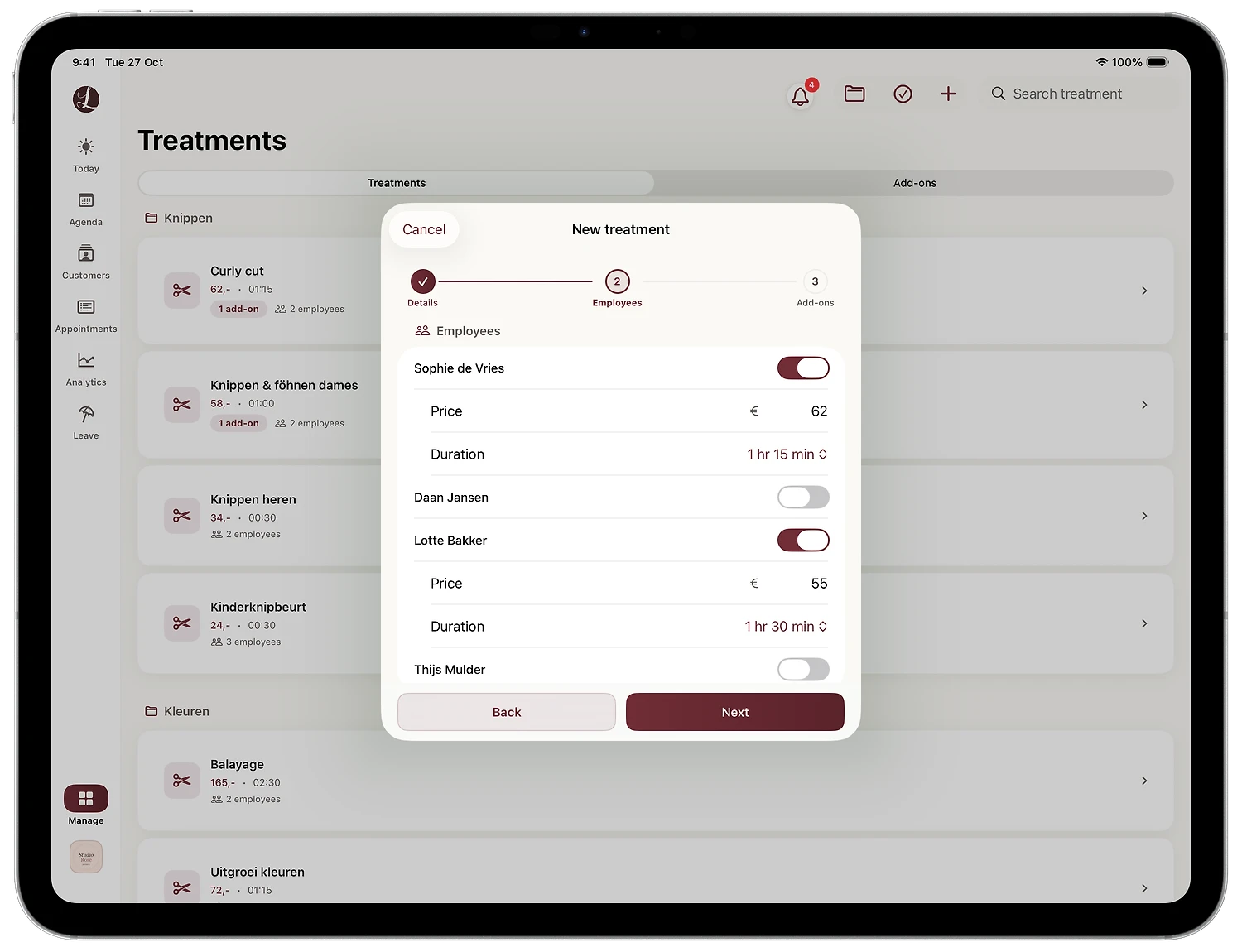
- In the Employees step, switch on everyone who performs this treatment.
- Each employee you switch on gets their own Price and Duration. They start at the values from step 1. Change them where needed.
- Tap Next.
In the example, Sophie does the Curly cut at the base price of €62 in 1 hour 15 minutes. Lotte charges €55 and gets 1 hour 30 minutes. Daan and Thijs are switched off, so clients cannot book a Curly cut with them.
Step 4: add add-ons and create the treatment
- In the Add-ons step you can add extras that clients choose themselves, such as a head massage. Tap New add-on or Reuse existing add-on. The details are in our guide on how to create and reuse add-ons.
- Tap Create.
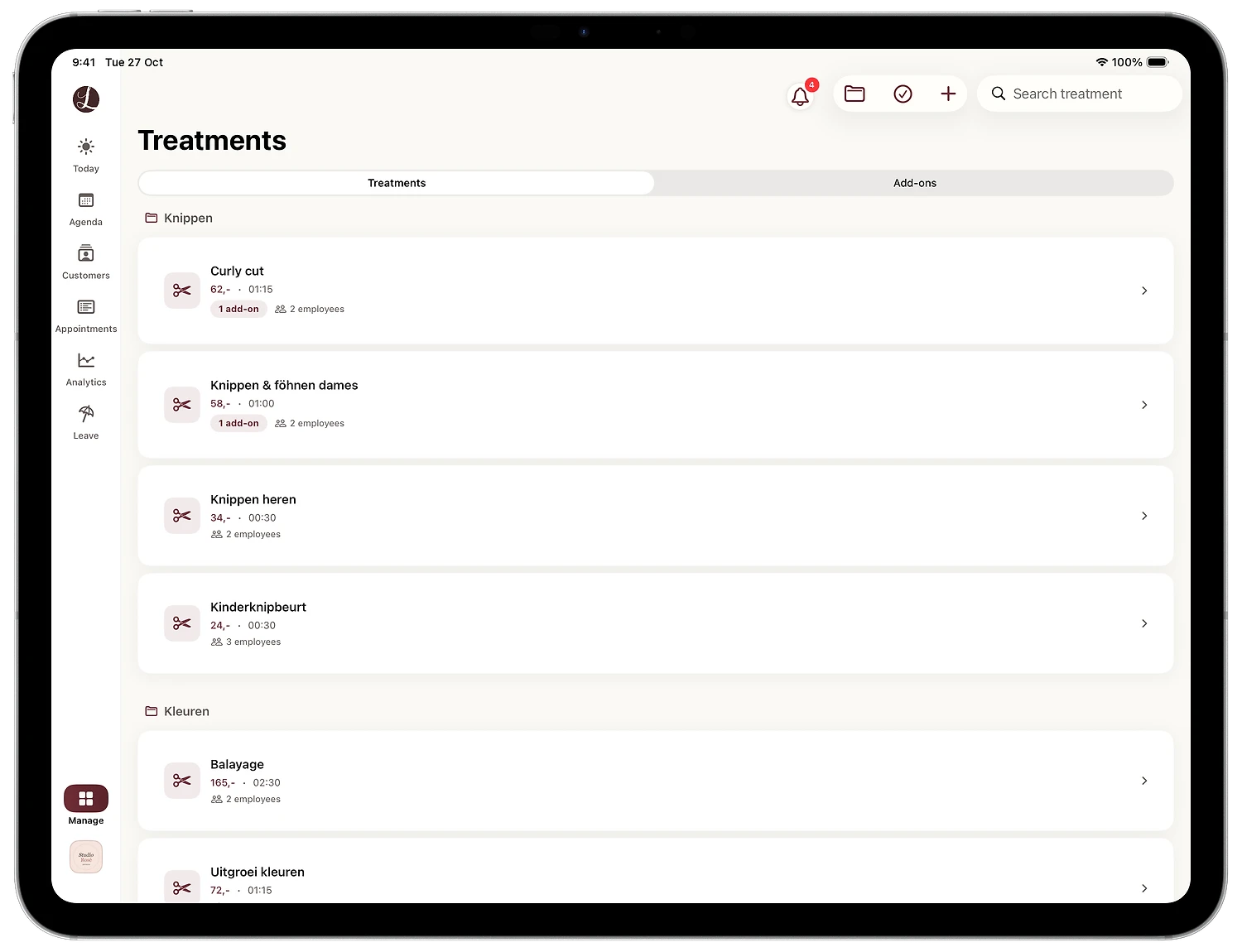
The new treatment now sits in the list under its category, with its price, duration, number of add-ons and number of employees.
How to edit an existing treatment
Tap the treatment in the list. The detail card opens, and there you change:
- the details, the price and the duration;
- the price and duration per employee, which you confirm with Save employees;
- the add-ons of the treatment.
When you are done, tap Done in the top right. If you stop offering a treatment, you will find Delete treatment at the bottom of the card. Its add-ons are removed along with it.
Tips for a service menu clients understand online
Use names clients would search for. "Women's cut and blow-dry" tells a client more than an internal abbreviation. Use the description to explain what happens and what the result is.
Keep categories clear. Cutting, Colouring, Styling or Nails: with a handful of categories, clients quickly find what they want on your salon page, through your booking link or in the Lookster app.
Plan a realistic duration. Include consultation, blow-drying and payment. A treatment that always runs over pushes back your whole day. The duration per employee is set in 5-minute steps.
Let price and time follow experience. A senior stylist charges more for the same cut, a junior needs more time. With a price and duration per employee you do not need two versions of the treatment. Switch the employee on first, then change their price.
Use add-ons instead of ten variations. Skip separate treatments for a cut with, without and with extra-long hair. One treatment with a few add-ons keeps your menu tidy, and add-ons automatically use the employees linked to the treatment.
Always link at least one employee. Only linked employees can perform the treatment, and clients see only their genuinely free times online. If you charge differently in the evening, Lookster also supports an evening rate.
A clear menu with honest timings is also one of the easiest ways to get more online bookings.
Set up your treatments in Lookster today
With Lookster you set up your full service menu in minutes, with price and duration per employee, add-ons and categories. Your first 3 months are free, no credit card needed. After that you pay €19.95 per month excl. VAT, including 3 employees, with 0% commission on every booking. See the pricing or get the Lookster Dashboard app for iPhone, iPad, Android and Windows.
Frequently asked questions
How do I add a new service in Lookster?
Open Manage and choose Treatments. Tap the plus button in the top right, enter the name, price, duration and category in the Details step and tap Next. In the Employees step, switch on everyone who performs the treatment, add optional extras in the Add-ons step and tap Create. The treatment appears straight away in your list, under the category you chose.
Can different stylists charge different prices for the same treatment?
Yes. In the Employees step, every employee you switch on gets their own Price and Duration. They start at the base price and duration, and you adjust them per person. Your senior stylist can charge more for the same cut, and a colleague who is still learning can be given extra time, without creating a second treatment for it.
How do I change the price of an existing treatment?
In Manage, Treatments, tap the treatment. In the detail card you change the details, the price and the duration. The price and duration per employee are in the same card, and you confirm them with Save employees. You also manage the add-ons of the treatment there. When you are finished, tap Done in the top right.
Why do I need to link employees to a treatment?
Only linked employees can perform the treatment. Lookster shows clients online only the genuinely free times of those employees, so the link decides who a client can book the treatment with. Link your colour specialist to balayage and your barber to fades, and nobody books a service with a team member who does not offer it.