In this article
In Lookster you export your appointments to an Excel file (XLSX) or a CSV file for your accountant in a few taps. Open the Appointments tab, choose which appointments you need, tap the share icon at the top right and set the format, VAT rate and columns in the Export Bookings window. Lookster calculates the amount including and excluding VAT for every appointment.
How do you export appointments from Lookster?
The export lives in the Lookster Dashboard app, available for iPhone, iPad, Android and Windows. The screenshots below were taken on an iPad. The demo salon uses Dutch treatment names, which is why you see names like "Gellak handen" (gel polish, hands).
Step 1: choose which appointments to export
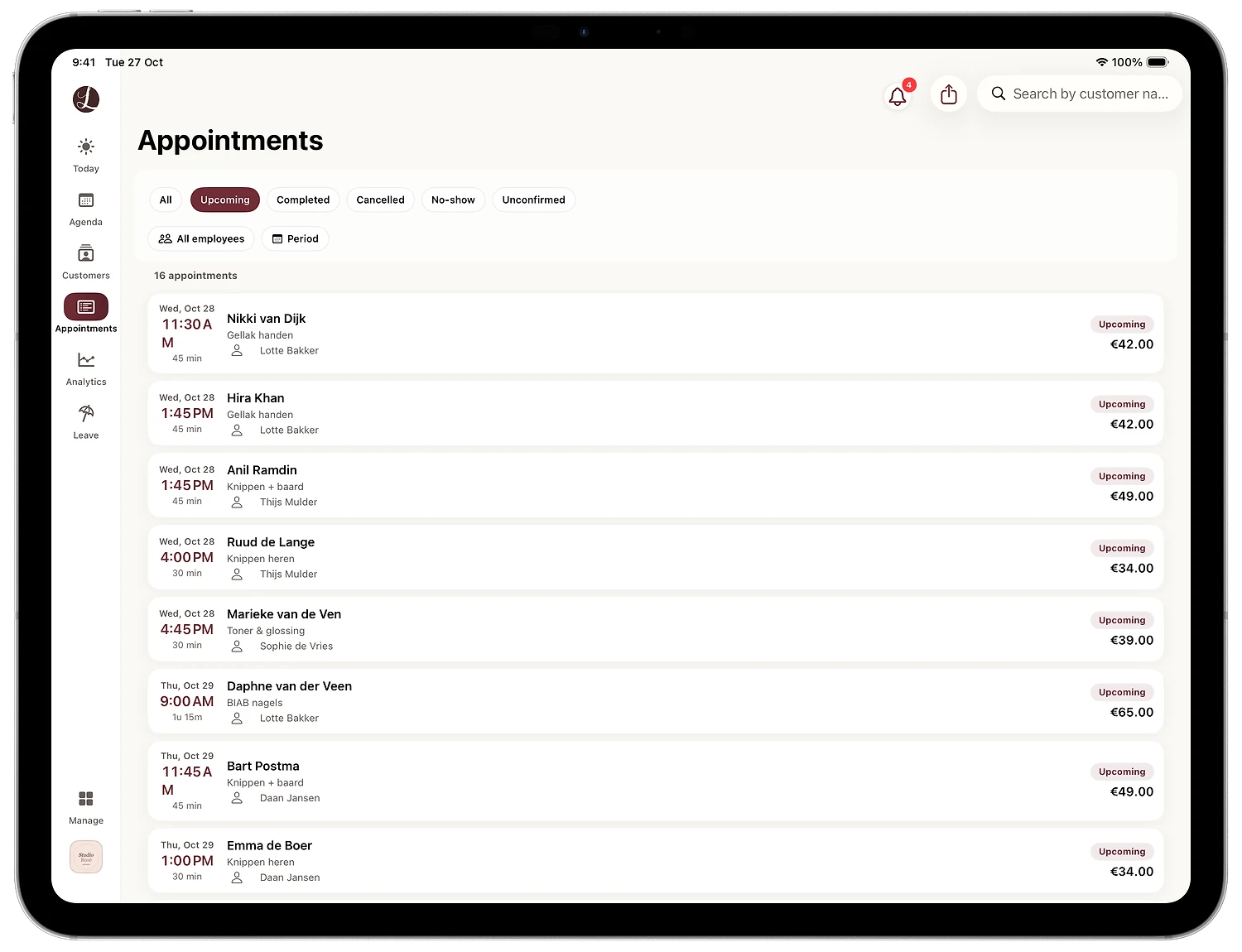
Tap Appointments in the sidebar. At the top you find the status filters: All, Upcoming, Completed, Cancelled, No-show and Unconfirmed. Below them you choose All employees or a single employee, and with Period you set the dates you want, for example 1 to 30 September. The export follows the choices you make here.
Step 2: tap the share icon
At the top right, next to the bell and the search bar, is the share icon: a small square with an arrow pointing up. Tap it and the Export Bookings window opens.
Step 3: check the period
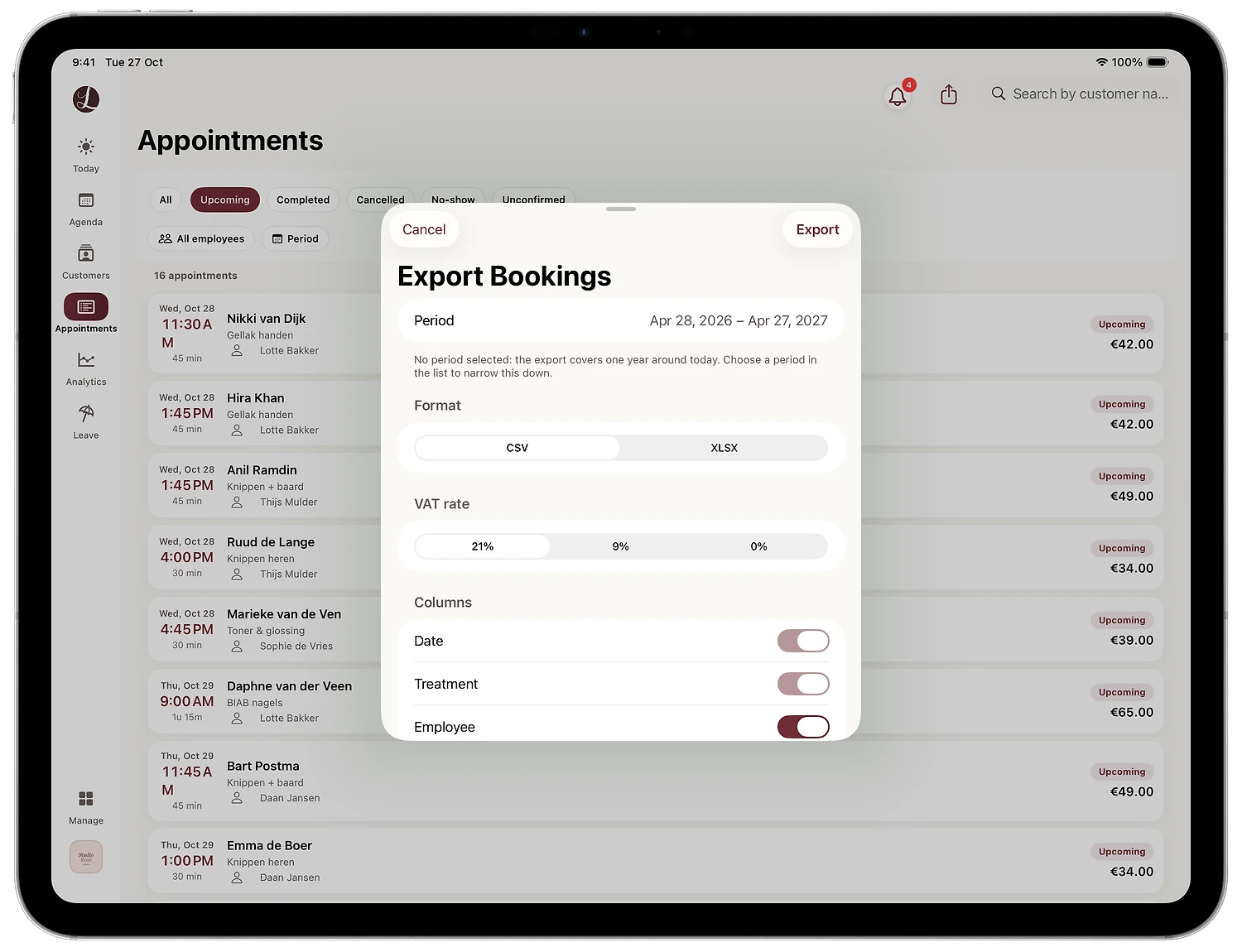
At the top of the window, Period shows which dates go into the export. If you have not picked a period in the list, the export covers one year around today, in the screenshot from 28 April 2026 to 27 April 2027. Only need one month or quarter? Close the window with Cancel, pick the period in the list and open the export again.
Step 4: choose the format, VAT rate and columns
Under Format, choose CSV or XLSX. Under VAT rate, choose 21%, 9% or 0%. Based on that rate, Lookster works out the amount excluding VAT and the VAT amount for every appointment. Under Columns you see what goes into the file. Date and Treatment are always included; a column such as Employee you switch on or off with the toggle.
Step 5: tap Export and share the file
Tap Export at the top right. You then see the file name and the Share File button, which you use to send the export to your accountant or save it in your own folder.
Which VAT rate should you choose?
Choose the rate that matches your treatments. In the Netherlands, VAT is called btw. According to the Dutch Tax Administration (Belastingdienst), cutting, washing, blow-drying, colouring and beard trimming fall under 9%. Manicures, pedicures, beauty treatments, make-up and selling hair products separately fall under 21%. If you use the small businesses scheme (kleineondernemersregeling, KOR), you do not charge VAT and choose 0%.
Do you combine hairdressing with nails, for example? If your nail technician only does nails, make one export for that employee at 21% and one for the rest of the team at 9%. Agree with your accountant on the split they prefer.
Tips to make the export work for your bookkeeping
- Export per month or per quarter. Use Period in the list to select exactly the months of your VAT return. The file then matches the period your accountant files for.
- Export only completed appointments. With the Completed status filter, the file only contains appointments that actually took place. That is the cleanest basis for revenue over a closed month.
- Filter by employee for commission. Pick one stylist under All employees and you have the revenue per employee straight away, handy for commission or a conversation about targets.
- XLSX for Excel, CSV for accounting software. If your accountant works in Excel, Numbers or Google Sheets, choose XLSX. If they use accounting software that can import files, CSV is usually the easiest option.
- Keep every export yourself. The Dutch Tax Administration asks you to keep your records for 7 years. A folder per year with one file per month or quarter makes that easy.
- Use Analytics for the big picture. The Analytics tab shows revenue, appointments and occupancy per period and per employee. The export is for your accountant, Analytics is for you.
If employees charge their own prices for a treatment, check that those prices are right before you export. How to set price and duration per employee is explained in the guide how to add a treatment.
Keep your records in order with Lookster
With Lookster your calendar, customers and revenue live in one place, and the export for your accountant takes a few taps. You use Lookster in the Dashboard app for iPhone, iPad, Android and Windows, or simply in your browser. Try it free for 3 months, no credit card needed, and after that Essentials costs €19.95 per month excl. VAT, including 3 employees. See all Lookster features or get the apps.
Frequently asked questions
How do I export my salon appointments to Excel?
Open the Appointments tab in the Lookster Dashboard app, pick a status, employee and period if you like, and tap the share icon at the top right. In the Export Bookings window, choose XLSX under Format, set the VAT rate and columns, and tap Export. The file opens straight away in Excel, Numbers or Google Sheets and is ready to send to your accountant.
Which VAT rate should a hairdresser in the Netherlands choose?
According to the Dutch Tax Administration (Belastingdienst), cutting, washing, blow-drying, colouring and beard trimming fall under the 9% VAT rate. Manicures, pedicures, beauty treatments, make-up and selling hair products separately fall under 21%. If you use the small businesses scheme (KOR), you do not charge VAT and choose 0%. If you are unsure which rate applies to your treatments, check with your accountant.
How long do I need to keep my records in the Netherlands?
The Dutch Tax Administration requires you to keep your records for 7 years, and 10 years for records about real estate. So keep a copy of every export you send to your accountant yourself, for example in a folder per year with one file per month or quarter. That way you have everything at hand if the tax office or your accountant has a question.
Can I export the revenue of a single employee?
Yes. In the Appointments tab, open All employees, pick the employee you want and then tap the share icon. The export then only contains that employee’s appointments in the chosen period. This is useful for commission, a revenue review or a stylist with their own prices. For charts of revenue and occupancy per employee, use the Analytics tab in the app.